
Choosing the right billing software for PC is not only about finding a program that can create invoices on a computer. The software has to fit the way your PC is actually used during business hours—at a billing counter, in a back office, by an accountant, or as the main system for managing sales, stock and payments.
For an Indian small business, the wrong PC billing setup can create practical problems even when the feature list looks impressive. The software may not work smoothly with your printer, may depend too heavily on one computer, may be difficult for staff to use quickly, or may make it hard to access data from another device when the owner is away. This guide explains how to choose the right billing software for your PC by testing the setup around your real daily workflow.
Summary
The right billing software for your PC should match your operating system, billing volume, internet availability, printer and barcode setup, data backup needs, staff access and business workflow. Before buying, decide whether you need installed, cloud-based or cloud-connected desktop software, test it on the PC and peripherals you will actually use, check how data can be recovered or moved, and compare the full cost of the setup rather than only the subscription price. For Indian SMBs, GST billing and other compliance features should be checked based on the transactions the business actually handles.
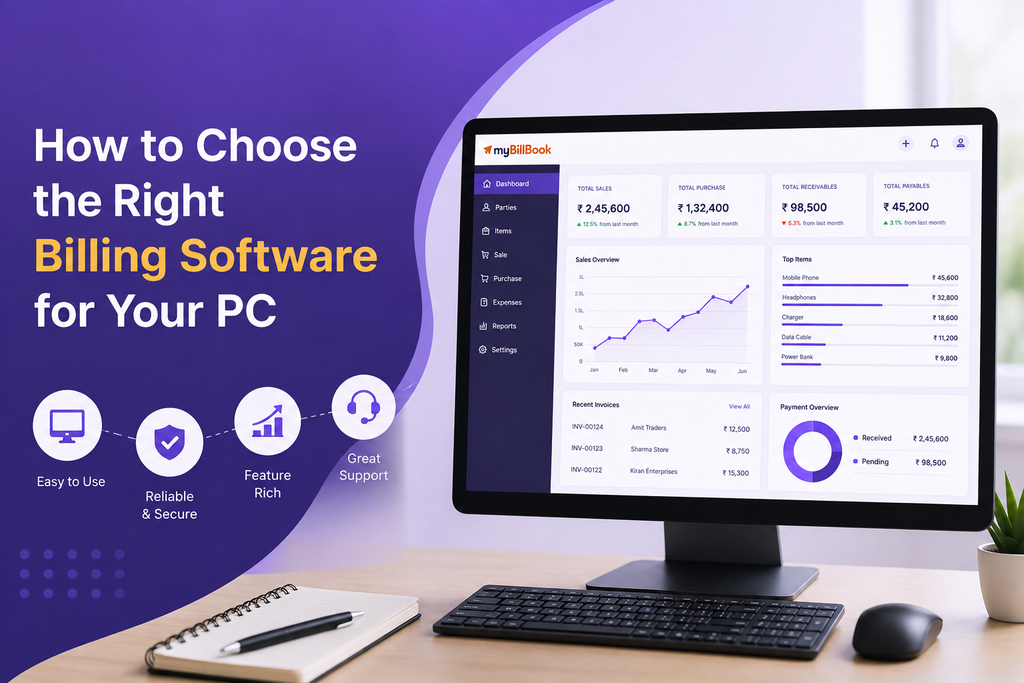
Table of Contents
- Start With How the PC Will Be Used
- Choose the Right PC Billing Setup
- Check Operating System and PC Compatibility
- Test Billing Speed on the Actual PC
- Check Printer, Barcode Scanner and Peripheral Support
- Decide How Much Internet Dependency You Can Accept
- Check Backup, Sync and Recovery Before You Need Them
- Check How Easily You Can Move or Export Business Data
- Verify the GST and Business Documents You Actually Need
- Compare the Total Cost of PC Billing
- Common Mistakes to Avoid
- When myBillBook Can Fit a PC Billing Workflow
Start With How the PC Will Be Used
Before comparing software, first define the job of the PC. Two businesses may both search for PC billing software but need very different setups.
A grocery store may keep one Windows PC permanently at the counter and use it for rapid billing, barcode scanning and thermal printing. A wholesaler may use a laptop mainly for detailed invoices, party accounts and reports. A service business may use a PC in the office while the owner also wants access from a phone. An accountant may need data exports more than a fast checkout screen.
Write down the answers to these questions before you shortlist tools:
- Will the PC be used at a customer-facing billing counter or mainly in the office?
- How many bills are typically created during busy hours?
- Will staff mainly use a keyboard, mouse, barcode scanner or a combination?
- Do you need a thermal printer, regular A4 printer, barcode label printer or more than one printer?
- Will the owner need to check the business from a phone or another computer?
- Would billing stop completely if this PC stopped working?
This step prevents a common mistake: buying software based on a long feature list without checking whether it fits the computer’s actual role.
Choose the Right PC Billing Setup: Installed, Browser-Based or Cloud-Connected Desktop
“Billing software for PC” can describe different types of software. Understanding the difference helps you choose the right setup before comparing individual features.
Installed desktop software
This is installed directly on the computer. Some desktop tools can keep core billing data locally and may continue working without a constant internet connection. This can suit businesses that want a fixed billing terminal or operate where connectivity is unreliable.
Browser-based billing software
This opens through Chrome, Edge, Safari or another supported browser. It usually reduces installation work and can make it easier to access the business from different computers, but it normally depends on an internet connection.
Cloud-connected desktop software
This gives you a desktop application while keeping supported business data connected to the cloud. It can combine a desktop-oriented billing experience with access from other devices, depending on the product and plan.
There is no single format that is best for every business. A counter that must keep billing during weak connectivity may prioritise offline capability. A business owner who moves between shop, office and home may value cloud access more. A distributor with several users may care most about synchronisation and centralised data.
Check Operating System and PC Compatibility
Do not assume that any billing program will work properly just because it says “desktop software”. Check the exact system requirements before paying.
Verify:
- Which Windows versions are supported?
- Does the software support Mac if your business uses macOS?
- Does it require a 64-bit operating system?
- How much RAM and storage does it need?
- Does it need administrator access for installation or updates?
- Will older computers continue to receive software updates?
- Can the software work correctly at the screen resolution used at your counter?
This matters especially for shops using an older PC that has been running billing for years. A new tool may technically install but still feel slow once the item list, reports and daily transactions grow.
If your business uses macOS rather than Windows, it is better to evaluate a dedicated billing software for Mac workflow instead of assuming a Windows-focused desktop product will work the same way.
Test Billing Speed on the Actual PC, Not Just in a Demo
A product demo on a fast laptop does not tell you how the software will behave on your billing counter.
Install or open the trial on the actual computer you plan to use. Then create a realistic bill with the same number of items, discounts, taxes and payment steps your staff normally handles.
For a counter-based business, test whether staff can:
- find an item quickly by name, code or barcode;
- change quantity without moving through too many screens;
- apply the usual discount or tax treatment;
- select cash, UPI, card or credit without slowing down;
- save and print the invoice with minimal clicks;
- start the next bill immediately.
Also check keyboard behaviour. At a busy counter, good keyboard navigation can matter more than attractive dashboards. If your business needs an item-first checkout flow with shortcuts and rapid counter billing, compare a dedicated Windows POS system with a regular PC invoicing workflow before deciding.
Check Printer, Barcode Scanner and Peripheral Support
PC billing rarely works in isolation. The computer may need to communicate with a thermal printer, A4 printer, barcode scanner, label printer, cash drawer or other billing hardware.
Do not treat “printer support” as a yes-or-no question. Test the exact setup.
For printers, check:
- whether your printer model and connection method work with the software;
- whether the required paper size is supported;
- whether GST details, logo, totals and item rows stay aligned;
- whether you can print a customer copy without manually changing settings each time;
- whether printer drivers remain compatible after operating system updates.
For barcode billing, scan several products—not just one. Test items with similar names, different pack sizes and different GST rates. If barcode billing is important to your shop, the barcode billing setup guide explains what to prepare before using scanners in daily billing.
If you are deciding between thermal and regular printing or need help understanding common connection methods, see how thermal printers work with POS and billing software.
Decide How Much Internet Dependency You Can Accept
Instead of asking only, “Does the software work offline?”, ask a more useful question: “What happens to each part of my workflow when the internet is unavailable?”
Some software may allow invoicing offline but require connectivity for cloud backup, sync, e-invoicing, e-way bills, messaging or remote access. Other tools may be fully cloud-dependent. The practical impact depends on your business.
Test these situations during the trial:
- What does the billing screen show when the connection drops?
- Can an unfinished bill be recovered?
- Which features stop working without internet?
- How does data sync after connectivity returns?
- Can two users accidentally create conflicting records?
A shop with unreliable broadband may choose differently from a business with stable fibre and mobile backup. Make this decision based on the connectivity at the actual billing location.
Check Backup, Sync and Recovery Before You Need Them
Many businesses evaluate backup only after a computer crashes. It should be checked before the software is selected.
Ask where your billing data is stored and what happens if the main PC is lost, damaged or replaced. If the software stores data locally, understand how often backups must be taken and where they should be kept. If it uses cloud storage, understand how data is synced and how you regain access on a replacement machine.
Run a simple recovery test if the provider allows it:
- Create a few sample invoices.
- Take or confirm the backup.
- Sign in from another supported device or restore the test data.
- Check whether invoices, customer balances and item records appear correctly.
The important question is not whether a “backup” feature exists. It is how quickly your business can continue billing when the primary PC is unavailable.
Check How Easily You Can Move or Export Business Data
PC billing software often becomes a long-term system. Before committing, check how your existing data can move in and how your data can move out later.
If you are shifting from Excel, another billing tool or manual records, ask whether you can import items, opening stock, customers and balances in bulk. Manually re-entering hundreds of products can make migration unnecessarily difficult.
Also check export options. You may need invoice data, stock reports, ledgers or GST reports in Excel, PDF or another format for your CA, internal analysis or future migration.
A good buying decision should not lock the business to one PC or one software provider simply because the historical data is difficult to retrieve.
Verify the GST and Business Documents You Actually Need
GST support is important for GST-registered businesses, but do not turn the selection process into a generic checklist of every compliance feature available.
Instead, list the transactions you actually create. For example:
- B2C or B2B GST invoices;
- credit and debit notes;
- quotations or estimates;
- delivery challans;
- purchase entries;
- e-invoices, if applicable to your business;
- e-way bills, when required for your transactions;
- GST reports or exports needed by your accountant.
Then create sample versions of those documents during the trial. This is more useful than choosing a product simply because its website lists many compliance features.
Compare the Total Cost of PC Billing, Not Just the Subscription Price
The cheapest annual plan may not be the cheapest setup.
Calculate the total cost around your PC workflow. This can include:
- software subscription or licence;
- extra user or extra device charges;
- desktop access charges;
- printer or barcode hardware;
- data migration or setup assistance;
- support or training;
- backup or cloud storage charges, if separate;
- advanced features you know the business will need.
Also check what happens at renewal. A low first-year price is less useful if the required desktop, multi-user or compliance features are available only in a different plan later.
Common Mistakes to Avoid When Choosing Billing Software for Your PC
Choosing only because it is free
Free software can be useful, but check limits on invoices, desktop access, users, backup, support and important business features before making it your main system.
Assuming “Windows compatible” means it will run well on your PC
Compatibility and performance are different. Test the software with your actual computer, product list and printer.
Ignoring what happens if the PC fails
If all business data and access depend on one machine, a hardware issue can become a billing issue. Know the recovery process in advance.
Buying a POS when you only need invoicing—or the reverse
A service office may not need a fast retail checkout screen. A supermarket counter may find a basic invoice form too slow. Match the workflow first.
Checking features but not data portability
Import and export options matter when you migrate, work with a CA or decide to change software later.
Testing alone when staff will do the billing
The person creating bills every day should test the software. A system that feels simple to the owner may still be slow for a cashier during peak hours.
When myBillBook Can Fit a PC Billing Workflow
myBillBook can be considered by Indian SMBs that want to handle billing from a desktop while keeping supported business data connected across devices. Its PC offering supports Windows 10 and 11, and myBillBook also provides Mac, web and mobile access options depending on the selected plan and workflow.
On a PC, relevant capabilities include GST and non-GST invoicing, invoice printing, barcode billing, inventory tracking, payment records and business reports. Because myBillBook uses cloud-connected business data, an active internet connection is required for syncing and supported online features.
That makes it a better fit for businesses that value a desktop billing interface together with cloud access than for a business specifically looking for a completely offline, local-only billing system.
Conclusion
The right billing software for your PC is the one that works reliably in your real business environment—not the one with the longest feature list.
Start with the role of the PC, choose the right desktop or cloud setup, verify system and peripheral compatibility, test billing speed, understand internet and backup requirements, and make sure your data can be moved when needed. Then check only the GST, inventory, payment and reporting features that your business actually uses.
Most importantly, test the software on the same PC, printer, scanner and workflow your staff will use every day. A short real-world trial will usually reveal more than a long product comparison.
