
When customers pay into different bank accounts, creating an invoice is only half the job. You also need to know which account received the payment, whether the bill is settled and whether the transaction appears in your bank statement. Using multiple bank accounts in your billing software can help Indian retailers, wholesalers and distributors keep these records organised without maintaining a separate payment notebook for each bank.
Summary
Multiple bank account support lets a business maintain separate account records alongside invoices and collections. The key is to record the correct receiving account, match payments to customers and invoices, and treat transfers between your own accounts differently from sales. myBillBook provides a Cash & Bank feature for managing bank accounts and their transactions.
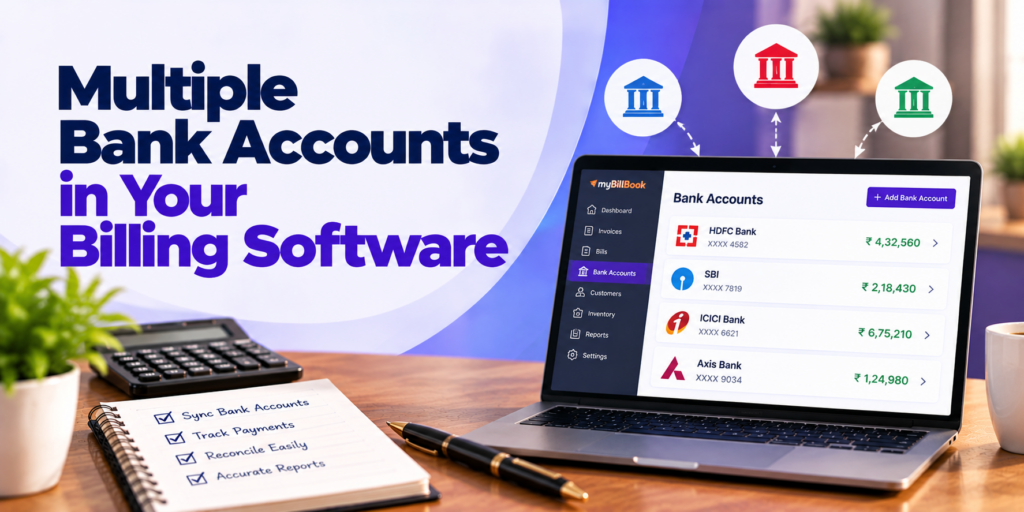
Table of Contents
- What does multiple bank account support mean?
- How bank accounts fit into your billing workflow
- Example: two accounts and three customer payments
- How to set up bank accounts in myBillBook
- How to check payments against bank statements
- Common mistakes to avoid
- What to check before choosing billing software
- Frequently asked questions
What Does Multiple Bank Account Support Mean?
Multiple bank account support means recording more than one bank account within the same billing or accounting system. Instead of treating every bank receipt as a single undifferentiated payment, you can maintain a separate record for each account.
For example, a wholesaler might receive customer transfers in one current account and collect UPI payments in another. Keeping both accounts in the billing system helps the owner identify where a payment was received. Adding an account to software does not necessarily connect it to the bank or automatically import its transactions. Check whether the software requires manual entries or offers bank feeds.
This article focuses on using those account records with invoices. For broader account administration, see how to manage multiple bank accounts efficiently.
How Bank Accounts Fit into Your Billing Workflow
1. Create the customer invoice
Prepare the bill with the correct customer, items, taxes and payment terms. An invoice shows what the customer owes; it does not by itself prove the payment has arrived.
2. Show the intended bank details
For bank-transfer customers, display the receiving account details on the invoice. This is especially useful if your business changes the account used for collections. Before sharing a bill, verify the account number and IFSC. In myBillBook, the bank account shown on an invoice can be selected in Invoice Settings; only one bank account is displayed per invoice.
3. Record the payment against the correct account
When a customer pays, check the bank confirmation and enter the receipt against the correct customer and bank account. Keep the UTR or other transaction reference where your process supports it. If only part of the invoice is paid, leave the remaining amount outstanding rather than marking the full bill as settled.
4. Record transfers separately
Moving ₹20,000 from your collection account to your operating account is not another customer sale. Record it as an inter-account transfer so the movement does not inflate collections or revenue.
5. Review outstanding bills
Compare recorded receipts with unpaid invoices. A bank credit that cannot be linked to a customer should be investigated rather than assigned to an arbitrary bill.
Example: Two Accounts and Three Customer Payments
Imagine an electrical goods distributor with two bank accounts: Account A for wholesale customer transfers and Account B for UPI collections.
| Transaction | Amount | Correct record |
|---|---|---|
| Retailer pays Invoice 101 into Account A | ₹18,000 | Receipt in A, linked to Invoice 101 |
| Customer pays ₹6,000 into Account B against a ₹10,000 bill | ₹6,000 | Receipt in B; ₹4,000 remains due |
| Owner transfers money from A to B | ₹12,000 | Transfer from A to B, not sales income |
These entries represent ₹24,000 in customer receipts and ₹12,000 moved internally. The transfer must not be added to the ₹24,000 as new sales collections.
This separation is particularly useful when one employee creates invoices while another checks bank receipts.
How to Set Up Bank Accounts in myBillBook
myBillBook’s Multiple Bank Accounts feature lets businesses maintain bank account records alongside billing transactions.
- Open myBillBook and go to Cash & Bank.
- Select + Add New Bank.
- Enter an identifiable display name, opening balance and balance date.
- Add bank details such as account number, IFSC and UPI ID where applicable.
- Save the account and repeat for another account.
You can also choose which account details appear on invoices through Invoice Settings. To record a movement between your own accounts, use the available transfer or balance-adjustment workflow rather than recording a fresh sale. The exact screen labels may differ by app version.
According to myBillBook’s help documentation, up to 15 bank accounts, including deactivated accounts, can be added. Multiple-account availability depends on the subscription plan; check current eligibility before upgrading.
For screen-by-screen instructions, refer to the official myBillBook help guide. This blog covers the billing workflow rather than duplicating the feature tutorial.
How to Check Payments Against Bank Statements
A useful daily check takes three records: your invoices, receipts recorded in billing software and actual bank statement credits.
| Check | Question to answer |
|---|---|
| Customer match | Which customer made this bank payment? |
| Invoice match | Which invoice or invoices does it settle? |
| Account match | Was it received in the account recorded in the software? |
| Amount match | Is it full payment, part payment or an advance? |
| Timing | Is a payment still pending or not yet reflected in the bank? |
For example, if a ₹9,500 NEFT credit appears in Account A but the invoice is still unpaid, investigate whether the receipt was missed or recorded under Account B. Avoid recording the same receipt twice just to make the numbers agree.
A payment entry in billing software is an internal record; bank reconciliation still requires checking it against actual bank transactions. For a wider discussion of collection processes, see accounts receivable.
Common Mistakes to Avoid
- Wrong opening balance: Start each account from a known date and verified balance; otherwise later totals may be misleading.
- Wrong receiving account: A correct customer payment recorded against the wrong bank can make both account records inaccurate.
- Duplicate UPI receipts: Check the transaction reference before entering a payment again.
- Treating transfers as sales: Internal transfers change where cash is held, not how much revenue was earned.
- Showing outdated bank details on invoices: Verify the invoice preview whenever you change the selected receiving account.
- Mixing personal and business money without classification: If a personal account is used for business transactions, discuss the proper accounting treatment with your CA.
What to Check Before Choosing Billing Software
If customers pay into different accounts, evaluate the software using a real invoice and receipt rather than only looking at a feature list.
Check whether it lets you maintain separate bank account records, choose invoice bank details, record part payments, distinguish internal transfers, review account transactions and export statements. Also confirm whether bank transactions are entered manually or imported, which platforms support the feature and whether your plan includes multiple accounts.
For businesses that already use myBillBook for GST invoices and payment tracking, its Cash & Bank functionality can help bring these records into the same working process. The multiple bank accounts service page explains the available controls.
Frequently Asked Questions
Can I use two bank accounts in the same billing software?
Yes, if your billing software supports multiple bank accounts. Each receipt should be assigned to the account where the money was actually received.
Can I display two bank accounts on one myBillBook invoice?
No. myBillBook’s help documentation states that one selected bank account can be displayed per invoice. You can change the selected account in Invoice Settings.
Does adding a bank account automatically sync its transactions?
Not necessarily. Adding bank details creates an account record, but automatic bank-feed syncing is a separate capability. Verify the available integration before assuming payments will appear without manual entry.
How should I record money transferred between my own accounts?
Record an inter-account transfer from the source account to the destination account. Do not classify it as a customer receipt or additional sales revenue.
What if a customer pays only part of an invoice?
Record the amount received against the appropriate invoice and bank account, and retain the unpaid balance for follow-up.
Can I deactivate an unused bank account in myBillBook?
Yes. myBillBook supports deactivating bank accounts while retaining their records. Check any remaining transactions and invoice settings before doing so.
