
Billing software for PC is software used on a desktop computer or laptop to create bills and invoices, record payments, maintain customer and item details, and manage other billing-related records. For Indian businesses, it may also support GST invoicing, inventory, barcode billing, printing and business reports.
But “works on a PC” is not the same as “works well for PC billing”. A useful PC billing system should take advantage of the way businesses actually use a computer: a larger screen, keyboard and mouse, printers, barcode scanners, long product lists, detailed invoices and multiple business records open during the day.
This guide explains what billing software for PC means and, more importantly, which features are worth looking for specifically in a desktop billing workflow. It does not repeat a general billing-software feature checklist or a software buying guide. The focus here is whether the features make day-to-day billing on a computer easier.
Summary
Billing software for PC helps businesses create and manage bills from a desktop or laptop. The best PC-focused features are not simply GST, inventory or reports listed on a product page. They should work well in a computer-based workflow: fast keyboard-friendly billing, reliable invoice printing, barcode scanner support, easy handling of large customer and item lists, connected stock and payment records, clear reports, multi-user controls and a safe way to access or recover data if the main computer changes. The features you prioritise should depend on the role of the PC in your business.
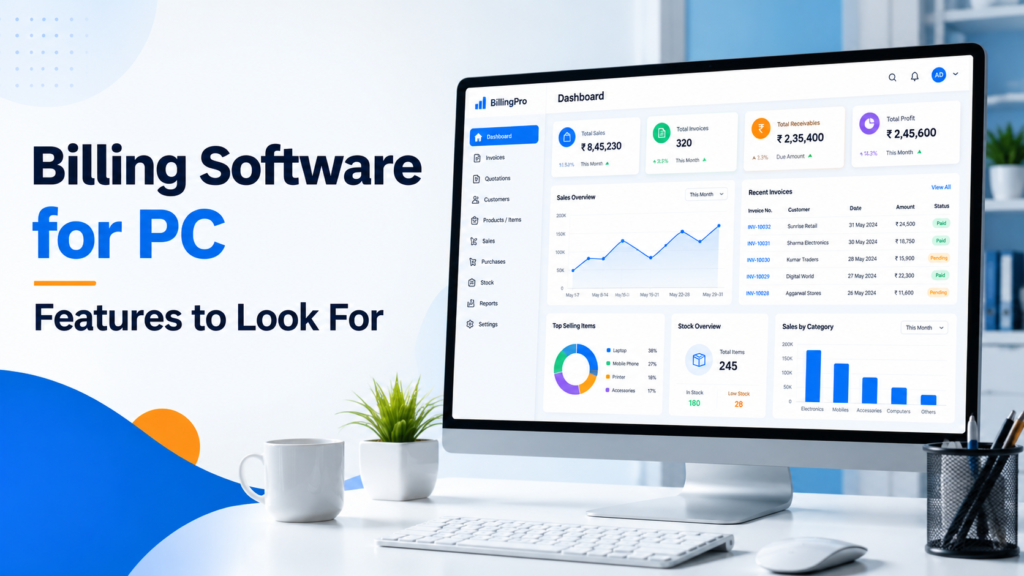
Table of Contents
- What Is Billing Software for PC?
- What Does “For PC” Actually Change in Billing?
- Features to Look for in Billing Software for PC
- Prioritise Features Based on How the PC Is Used
- What Not to Confuse with a Useful PC Feature
- Where myBillBook Fits
What Is Billing Software for PC?
Billing software for PC is a billing system that a business uses through a desktop computer or laptop. Depending on the product, it may be an installed desktop application, a browser-based system, or a cloud-connected desktop app.
The computer becomes the working interface for tasks such as:
- creating customer bills or GST invoices;
- searching and selecting products or services;
- recording payment modes and pending amounts;
- printing invoices or receipts;
- reviewing customer, supplier or item records;
- checking sales, stock or payment reports;
- using connected devices such as barcode scanners or printers.
That makes PC billing especially useful when the computer has a fixed role in the business. A retailer may keep one PC at the counter. A wholesaler may create detailed B2B invoices from an office desktop. A distributor may use a laptop to manage party records and reports. A service business may prepare invoices on a computer because typing descriptions and reviewing documents is easier on a larger screen.
If you are deciding between installed, browser-based or cloud-connected options, or comparing compatibility and internet requirements, read our separate guide on how to choose the right billing software for your PC. This article focuses only on what a good feature should do once the PC becomes part of the billing workflow.
What Does “For PC” Actually Change in Billing?
Many billing tools can technically open on a computer. That alone does not make them well suited to desktop billing.
A PC changes how staff interact with billing software in several practical ways.
More Information Can Be Visible at Once
A larger screen can show the item list, customer details, invoice lines, taxes, totals and payment information without constantly switching between small panels. This matters for wholesalers, distributors and businesses that create invoices with many line items.
Keyboard Speed Matters More
At a busy counter or office desk, experienced users often work faster with item codes, keyboard search, arrow keys and shortcuts than by clicking through every field. A PC billing interface should make repeated entry efficient rather than forcing a mobile-style workflow onto a larger screen.
Printers and Scanners Become Part of the Workflow
The PC may be connected to a thermal printer, A4 printer, barcode scanner or label printer. The software therefore needs to work reliably with the devices the business actually uses, not just create a PDF on screen.
Bulk Work Becomes More Important
Businesses commonly use PCs when they need to manage larger item lists, customer masters, price changes, stock records or exports. Good desktop software should make these tasks easier through search, filtering, bulk actions or spreadsheet-friendly import and export options where supported.
The PC May Be Shared
One computer may be used by a cashier during the day and a manager or accountant later. That makes user access, permissions and traceability more important than in a one-person mobile setup.
Features to Look for in Billing Software for PC
The following are not meant to be another generic “top billing software features” list. They are PC-specific checks: what each capability should look like when a computer is the main billing device.
1. A Desktop-Friendly Invoice Screen
The invoice screen is where most daily work happens. On a PC, it should make good use of the larger display and physical keyboard.
Look for a workflow where staff can:
- search customers and items quickly;
- move between quantity, rate, discount and tax fields without unnecessary clicks;
- view several invoice lines clearly;
- edit an item without leaving the bill completely;
- see the running total and payment details while checking the invoice;
- save, print or move to the next bill with minimal interruption.
For example, a wholesaler creating a 35-line invoice should not have to open and close multiple screens just to confirm quantities and GST details. The desktop layout should help the user review the full transaction efficiently.
2. Reliable Printing from the Billing Computer
Printing is one of the clearest reasons businesses prefer PC billing. The software should support the print format and workflow your business actually uses.
Check whether you can:
- print compact receipts on a supported thermal printer;
- print detailed invoices on A4 or another required paper size;
- preview the invoice before printing;
- keep the correct printer selected for regular billing;
- reprint an old invoice without rebuilding it;
- maintain readable alignment for item rows, taxes and totals.
If thermal printing is important to your counter, see our guide on how thermal printers work with POS and billing software for the common connection and workflow considerations.
3. Barcode Scanner Support for Product-Heavy Businesses
Barcode capability becomes valuable when a PC is used at a retail counter with many products.
The important feature is not merely “barcode supported”. The useful workflow is that scanning a code finds the correct item, brings the stored product information into the bill and lets the cashier continue without manually searching the catalogue.
A good setup may also support barcode generation or printing where the business needs to label its own products. Retailers evaluating this workflow can explore billing software with barcode generation and scanning.
Practical example: A garment store may have similar product names across sizes and colours. Scanning the correct barcode is more useful than typing a partial item name and selecting from several similar results.
4. Easy Handling of Large Item and Customer Lists
A PC is often chosen because the business handles more data than is comfortable to manage on a phone.
Look for features that make master data easier to work with, such as:
- fast search across a large item catalogue;
- filters by category, customer or other available fields;
- bulk import of items or parties where supported;
- bulk editing for prices or item details where available;
- easy retrieval of old customers and invoices;
- clear handling of duplicate or similar names.
This can matter more than an attractive dashboard. A distributor with thousands of products needs to locate, update and bill the right item quickly throughout the day.
5. GST-Ready Billing That Reduces Repeated Entry
For GST-registered businesses, PC billing software should help staff reuse correctly maintained business, customer and item tax details rather than calculating or typing them again for every bill.
Depending on the transaction, the system may need to handle GSTIN details, HSN or SAC information, tax rates, taxable values and the applicable CGST, SGST or IGST breakup.
On a PC, the useful part is visibility and control. Staff should be able to check the invoice details on one screen and correct the underlying customer or item data where appropriate instead of manually adjusting every bill.
Software cannot determine the correct tax treatment if the business enters incorrect master data. GST features should reduce repeated calculation and record-keeping work, not replace the business’s responsibility to maintain accurate information.
6. Billing-Linked Inventory, Not a Separate Stock Screen
For retailers, wholesalers and distributors, inventory is most useful when it is connected with the transactions created on the PC.
When a sale is recorded, the corresponding stock should update according to the software’s inventory workflow. Purchases and returns should also affect the relevant records where supported.
On a larger screen, the user should be able to review item quantities, movement or low-stock information without maintaining a parallel spreadsheet for everyday stock control.
Businesses that need deeper stock capabilities can review inventory management software separately rather than expecting a basic invoice tool to handle every inventory requirement.
7. Payment and Outstanding Records Next to Billing Data
A PC billing system should help the user see what happened after the invoice was created.
If a customer pays in full, pays partially or buys on credit, the payment status should remain connected to the transaction. For businesses with regular parties, the ability to review outstanding amounts from the same system prevents staff from maintaining a separate credit notebook or spreadsheet.
This is especially useful for wholesalers and distributors where one customer may have several invoices and several part-payments during the month.
8. Data That Is Not Trapped on One Computer
Some PC billing software stores data locally. Some stores it in the cloud. Some combines a desktop application with cloud sync. The important feature is knowing how the business continues if the main PC is replaced, damaged or temporarily unavailable.
Look for a clear backup, sync or recovery process appropriate to the software you choose. If remote or multi-device access is important, check whether supported business data can be accessed from another authorised device.
This should not be confused with offline capability. A program can work offline and still require manual backup. A cloud-connected system can provide automatic sync but depend on connectivity for some functions. The right setup depends on your business environment.
9. Multi-User Access and Permissions for Shared Work
When several people use the same business records, a common login for everyone can create avoidable confusion.
PC billing software should offer an appropriate way to manage users if your business needs it. Depending on the system, this may include separate users, role-based permissions or controls over who can view reports, change settings, edit transactions or perform other sensitive actions.
A cashier, manager and accountant do not always need the same level of access. The value of multi-user functionality is not simply adding more logins; it is keeping people on the same business data while limiting actions appropriately.
10. Reports, Export and CA-Friendly Review
PCs are particularly useful for reviewing detailed records. Reports should therefore be readable, searchable and easy to export in the formats your business actually uses.
Useful examples can include sales summaries, item-wise reports, customer outstanding reports, stock reports and tax-related reports where supported.
Also check how information can be shared with your accountant or CA. For many Indian SMBs, the owner handles daily billing while an external accountant periodically reviews reports or prepares filings. Export options can make that handover easier without giving unrestricted access to the complete business account.
Prioritise Features Based on How the PC Is Used
The right feature set depends less on the size of the software and more on the job the computer performs in your business.
| Role of the PC | Features to Prioritise | Why |
|---|---|---|
| Customer-facing billing counter | Fast invoice screen, keyboard flow, barcode scanning, thermal printing, payment modes | The computer must move quickly from one customer bill to the next. |
| Wholesale or distributor office PC | Long invoices, party records, outstanding tracking, item search, GST details, reports and exports | The user handles detailed transactions and regular business customers. |
| Owner’s laptop | Reports, invoice search, backup/sync, payment visibility and access from other supported devices | The owner may review the business from more than one location. |
| Shared office computer | Multi-user access, permissions, customer records, reports and clear transaction history | Different people need to work with the same data without having identical access. |
| Back-office inventory computer | Bulk item management, purchases, stock reports, barcode or label workflows where relevant | The PC is used for product and stock administration rather than only checkout. |
This approach also helps avoid paying for features that do not solve a real problem. A service business creating ten invoices a week may not need barcode scanning. A single-owner business may not need advanced permissions. A product-heavy retailer may consider both essential.
What Not to Confuse with a Useful PC Feature
“Windows Compatible” Does Not Mean Desktop-Optimised
A tool may run on Windows but still have a slow or awkward billing workflow. Compatibility tells you whether the software can open; it does not tell you whether staff can bill efficiently.
Cloud Sync Is Not the Same as Offline Billing
Cloud-connected software may make data available across devices, but some features may require internet access. Check what remains usable when connectivity drops.
A Long Feature List Does Not Mean Better PC Billing
A feature is useful only if it fits the task the computer performs. Ten connected functions that reduce daily work are more valuable than dozens of options staff never use.
POS and PC Billing Are Related, but Not Identical
A PC can be used for normal invoicing, back-office billing or POS-style checkout. If the computer is permanently used at a high-volume retail counter, a dedicated POS workflow may deserve more attention than a conventional invoice form.
Where myBillBook Fits for PC Billing
myBillBook can be considered by Indian SMBs that want to create bills from a desktop while keeping billing connected with other business records.
Relevant PC workflows include GST and non-GST invoicing, invoice printing, barcode billing, inventory management, payment tracking and business reports. myBillBook also provides desktop, web and mobile access options depending on the selected plan and supported workflow, with cloud-connected business data rather than keeping the business limited to one computer.
That can suit a retailer using a PC at the counter, a wholesaler creating detailed invoices from an office computer, or an owner who wants desktop billing while still being able to review supported records from another device.
Before moving live billing to any new software, test the exact computer, printer, scanner and business data you plan to use. Our separate PC billing software pre-installation checklist covers those setup steps in detail.
Conclusion
Billing software for PC should do more than open on a computer. It should make desktop billing easier by using the strengths of the PC: a larger screen, faster keyboard input, reliable printing, scanner support, easier handling of large data sets and better review of reports and records.
When comparing features, ask what each one actually changes in your daily computer-based workflow. Does it shorten the bill? Make printing more reliable? Help staff find the right item? Keep data safe beyond one machine? Make customer dues or stock easier to review?
Choose the features that match the job of your PC rather than the longest product checklist.
