
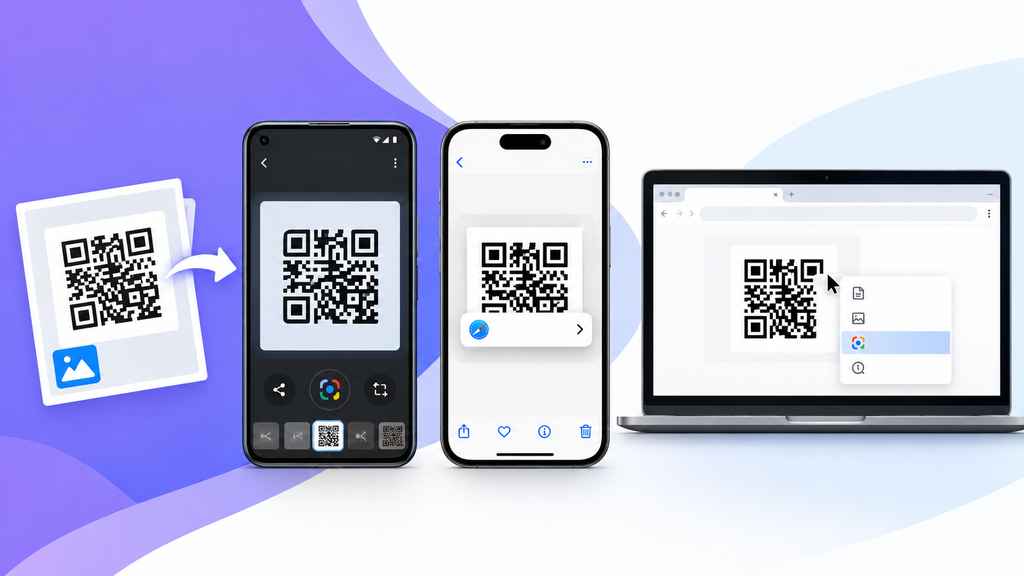
A QR code does not always appear on a poster, product, or another screen. Sometimes it is already saved on your phone as a screenshot, photo, WhatsApp image, email attachment, or downloaded picture.
The good news is that you usually do not need another phone to scan it. You can read a QR code directly from a saved image using built-in tools available on Android, iPhone, and computers.
TL;DR
- Android: Open the image in Google Photos and use Google Lens.
- iPhone: Open the image in Photos and use the available QR or image-recognition option.
- Computer: Use Google Lens in a supported browser or a trusted QR code reader that accepts image uploads.
- Screenshots, downloaded pictures, and photos can generally be scanned in the same way.
- If the QR code does not scan, check whether the image is blurred, cropped, too small, or partially hidden.
Can You Scan a QR Code From an Image?
Yes. A QR code can be scanned from a saved image, photo, or screenshot without pointing your camera at the physical code.
Instead of using the normal camera scanner, you need an image-recognition feature that can analyse a QR code already stored on your device.
This can be useful when a QR code is:
- Sent through WhatsApp or another messaging app
- Received by email
- Saved as a screenshot
- Downloaded from a website
- Included in a PDF or document
- Shared through social media
- Stored in your phone’s gallery
How to Scan a QR Code From a Screenshot
A screenshot containing a QR code can usually be scanned in the same way as any other saved photo.
On Android
- Open the screenshot in Google Photos.
- Tap the Google Lens icon.
- Let Lens analyse the screenshot.
- If a QR code is detected, the associated link or action should appear.
- Check the destination before opening it.
On iPhone
- Open the screenshot in the Photos app.
- Make sure the complete QR code is clearly visible.
- Press and hold the detected QR code or use the available image-recognition action.
- Tap the displayed link or action if it is the destination you expect.
If nothing appears, try zooming in on the QR code or cropping unnecessary parts of the screenshot.
How to Scan a QR Code From an Image on Android
Google Lens is one of the easiest ways to scan a QR code that is already saved on an Android phone.
Method 1: Using Google Photos
Open Google Photos and select the picture containing the QR code.
Tap the Lens icon. Google Lens will analyse the image and, when it successfully recognises the QR code, show the information encoded in it.
You can then tap the detected URL or choose another available action.
Method 2: Using the Google App
You can also scan a saved picture through the Google app:
- Open the Google app.
- Tap the Google Lens icon in the search bar.
- Select the image containing the QR code from your device.
- Position the Lens selection around the QR code if required.
- Open the recognised result.
What if Google Lens Does Not Detect the QR Code?
Try:
- Cropping the image so that the QR code is more prominent
- Zooming in without making the image blurry
- Using the original image instead of a compressed copy
- Making sure all four sides of the QR code are visible
- Increasing image brightness if the code is difficult to see
How to Scan a QR Code From a Photo on iPhone
If the QR code is already saved in your iPhone’s Photos app, you usually do not need to display it on another phone and scan it with the Camera app.
Using the Photos App
- Open Photos.
- Select the picture or screenshot containing the QR code.
- Make sure the code is clearly visible.
- Press and hold the detected QR code or use the relevant recognised action.
- Review the link before opening it.
Availability can depend on the device model, iOS version, region, and the quality of the image.
What if the QR Code Is Not Recognised?
First try:
- Opening the original high-quality picture
- Zooming into the QR code
- Cropping surrounding content
- Checking that the QR code is not cut off
- Updating iOS if your device supports a newer version
If your phone still cannot detect it, another image-based QR reader may be required.
How to Scan a QR Code From a Picture on a Computer
You can also read a QR code stored on a Windows PC, Mac, or laptop.
Option 1: Use Google Lens
If the QR code appears as an image on a webpage, supported versions of Chrome can use Google Lens to analyse the image.
Typically, you can:
- Open the image containing the QR code.
- Right-click the image.
- Choose the option to search the image using Google Lens.
- Select the QR-code area if necessary.
- Review the detected link.
Option 2: Use an Online QR Code Reader
Some websites allow you to upload a screenshot or image and decode the QR code.
If you use an online scanner, be careful with images containing private or sensitive information because the image may be uploaded to a third-party server.
Check the tool’s privacy policy before uploading confidential documents.
Option 3: Scan the Computer Screen With Your Phone
If the QR code is displayed on your computer, the simplest method may still be to:
- Open the QR code clearly on the screen.
- Open the Camera app on your phone.
- Point your phone at the QR code.
- Tap the detected link.
How to Scan a QR Code Received on WhatsApp
If someone sends you a QR code through WhatsApp, you do not have to forward it to another device.
Android
- Open the QR-code image in WhatsApp.
- Save or download it if required.
- Open it in Google Photos.
- Tap Google Lens.
- Open the detected result.
iPhone
- Open the image received in WhatsApp.
- Save it to Photos if required.
- Open the saved image.
- Press and hold the recognised QR code.
- Select the appropriate action.
The same process can generally be used for QR images received through Telegram, Messages, email, or similar apps.
How to Scan a QR Code From a PDF
A QR code inside a PDF can also be scanned.
The easiest method is usually to take a screenshot of the QR-code section and then scan the screenshot.
On a Phone
- Open the PDF.
- Zoom into the QR code.
- Take a screenshot.
- Open the screenshot in Photos or Google Photos.
- Use the available image-recognition feature.
On a Computer
You can either:
- Display the PDF and scan the code using your phone’s camera
- Capture the QR code as an image and use a compatible QR reader
Avoid uploading confidential invoices, identity documents, or financial records to unfamiliar online QR-reading websites.
Can You Scan a QR Code From a Photo in Your Gallery?
Yes. A QR code does not have to be physically in front of your camera.
If the complete code is visible in a clear image stored in your gallery, compatible image-recognition tools can decode it.
| Device | Common Method |
|---|---|
| Android | Google Photos + Google Lens |
| iPhone | Photos + supported image recognition |
| Windows/Mac | Google Lens or compatible QR reader |
| Second device available | Display the image and scan with the other device’s camera |
Why Is my QR Code Not Scanning From an Image?
A QR code may fail to scan even if it is visible in the picture.
1. The Image Is Blurry
If the individual squares cannot be distinguished properly, the scanner may not be able to decode the pattern.
Use the original image whenever possible.
2. The QR Code Is Too Small
A QR code occupying only a tiny portion of a large screenshot may not be detected immediately.
Crop the screenshot around the code or zoom into it.
3. Part of the QR Code Is Missing
The complete QR-code pattern should remain visible.
If an edge or corner has been cut off while taking the screenshot, try getting the original image.
4. The Image Is Highly Compressed
Messaging and social-media apps can reduce image quality.
Try downloading or requesting the original file.
5. There Is Poor Contrast
QR codes are easiest to read when there is clear contrast between the code and its background.
Dark overlays, glare, unusual colours, or low brightness may interfere with detection.
6. The QR Code Is Damaged
Although QR codes include error correction, heavily damaged, distorted, or obscured codes may still become unreadable.
7. The QR Code Itself Is Invalid
Sometimes the scanner is working correctly, but the QR code no longer points to a valid destination.
For example, its associated webpage may have been removed or the encoded link may be incorrect.
Is It Safe to Scan a QR Code From an Image?
Scanning a QR code itself is generally not the main risk. The important part is where the QR code takes you.
Before opening a detected link:
- Check the website domain
- Avoid entering passwords on unfamiliar websites
- Be cautious if the page immediately requests payment
- Do not install an unknown app just because a QR code recommends it
- Avoid sharing OTPs, PINs, or banking credentials
- Be careful with shortened or suspicious-looking links
A QR code can hide its destination until it is scanned, so checking the resulting URL before continuing is important.
Screenshot vs Photo: Which Is Better for Scanning a QR Code?
A screenshot is often easier to scan because the QR code remains flat and is not affected by camera angle, glare, or movement.
A photo can also work well if:
- The image is sharp
- The code is photographed straight-on
- There is enough light
- The entire QR code is visible
- There are no reflections covering it
If a QR code displayed on your screen is not scanning properly, taking a clean screenshot is usually worth trying.
Do You Need a Separate QR Scanner App?
Not necessarily.
Modern Android and iPhone devices already include built-in ways to recognise QR codes.
A third-party QR scanner may still be useful when:
- Your phone does not support the built-in method
- You need to scan unusual image formats
- The QR code is difficult to detect
- You need specialised QR-code functionality
If you install an app, review its permissions and privacy information first.
Frequently Asked Questions
Can you scan a QR code from a screenshot?
Yes. Open the screenshot using an image app that supports QR recognition. On Android, Google Lens can analyse saved images. Supported iPhones can also recognise QR codes within photos.
Can I scan a QR code from a picture on the same phone?
Yes. You do not normally need a second phone. Open the saved image and use your device’s image-recognition feature instead of the live camera scanner.
How do I scan a QR code from my gallery?
On Android, open the image in Google Photos and tap Google Lens. On supported iPhones, open the image in Photos and interact with the detected QR code.
How do I scan a QR code someone sent me?
Save the QR-code image to your phone and open it using Photos or Google Photos. Then use the available QR or image-recognition function.
Can Google Lens scan a QR code from a screenshot?
Yes. Google Lens can analyse images stored on an Android device and recognise QR codes within them.
Can I scan a QR code without another phone?
Yes. If the QR code is saved on your current phone, use an image-based scanner such as Google Lens or your phone’s built-in image-recognition features.
Why can’t I scan a QR code from a screenshot?
The QR code may be too small, blurred, cropped, distorted, or compressed. Try using a clearer image, cropping around the QR code, or obtaining the original picture.
Can I scan a QR code from an email?
Yes. Save the QR image or take a screenshot of it, then use your phone’s image-recognition feature to scan the saved picture.
Conclusion
Scanning a QR code from an image is usually straightforward and does not require another phone.
On Android, Google Lens can read QR codes from saved photos and screenshots. On supported iPhones, built-in image-recognition features can help identify QR codes contained in images. Computer users can use Google Lens, a suitable QR reader, or simply display the code and scan it with a phone.
If a QR code does not scan immediately, first check the image quality, crop, size, and visibility before installing another application.
