
Running a supermarket with one billing counter is manageable. But once you add two, three, or more counters, the real challenge begins. You need fast billing, accurate stock updates, clear staff permissions, proper cash tracking, and a simple way to know who did what at each counter.
That is why managing multi-counter billing and staff access in a supermarket should not be treated as only a software setup. It is an operating process. If the process is not clear, you may face duplicate bills, wrong discounts, stock mismatch, cash confusion, and too much dependency on one trusted person.
This guide explains how Indian supermarket owners can organise multiple billing counters and staff access in a practical way without slowing down daily sales.
Summary
To manage multi-counter billing in a supermarket, first define how each counter will work, assign staff roles, control what each user can access, use barcode-based billing, track cash and UPI collections counter-wise, and review day-end reports daily. The goal is to keep billing fast while making sure staff can only access the actions needed for their role.
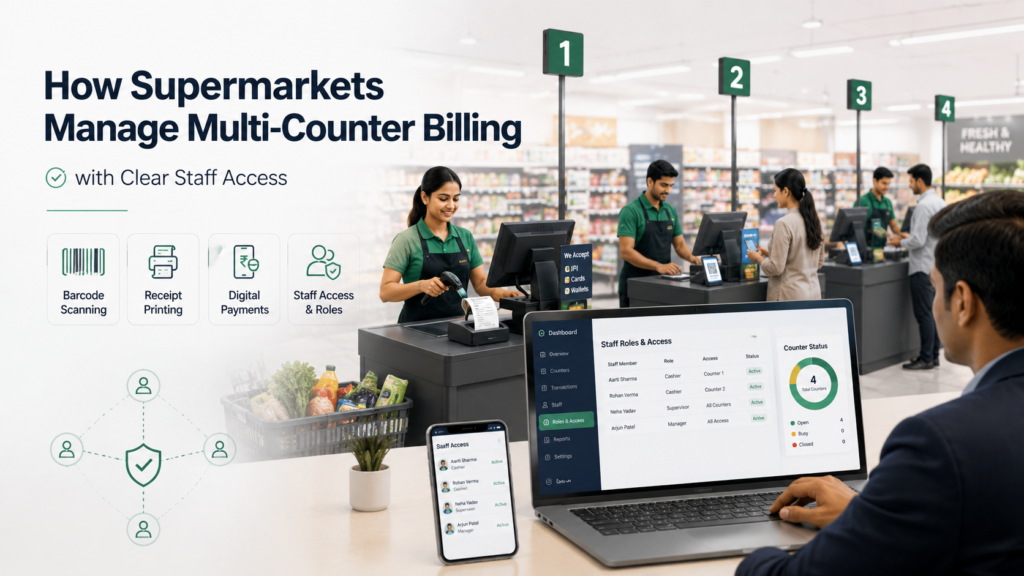
Table of Contents
- Why Multi-Counter Billing Needs a Clear System
- Map Your Supermarket Billing Workflow First
- Decide How Each Billing Counter Will Operate
- Use Role-Based Staff Access Instead of Shared Logins
- Create a Practical Staff Access Matrix
- Connect Billing Counters with Inventory Updates
- Track Cash, UPI, Card, and Credit Sales Counter-Wise
- Set Rules for Discounts, Returns, and Bill Edits
- Use Day-End Reports to Check Staff Accountability
- Common Mistakes to Avoid
- Final Checklist for Multi-Counter Billing and Staff Access
Why Multi-Counter Billing Needs a Clear System
In a small shop, one person may create the bill, collect payment, pack items, and update stock. A supermarket works differently.
During peak hours, one staff member may handle Counter 1, another may handle Counter 2, a supervisor may approve returns, and the owner may check sales from a phone or desktop. If everyone uses the same login or follows different billing methods, errors become difficult to track.
For example, assume Counter 1 gives a discount without approval, Counter 2 accepts partial payment, and Counter 3 cancels a bill after payment. At the end of the day, your sales report may not match the cash drawer or UPI collections. The issue is not always dishonesty. Many times, it is simply unclear access and weak process control.
A good multi-counter setup should answer five questions clearly:
- Who can create bills?
- Who can edit or cancel bills?
- Who can give discounts?
- Who can view reports?
- Who is responsible for day-end cash and payment matching?
Once these are clear, your supermarket can run faster without losing control.
Map Your Supermarket Billing Workflow First
Before setting up multiple counters, write down how billing actually happens in your store. Do not start directly with software settings.
A simple supermarket billing flow may look like this:
- Product is scanned or searched at the counter
- Quantity, weight, or item count is added
- GST and price are applied automatically
- Discount or offer is added, if applicable
- Customer pays by cash, UPI, card, or credit
- Invoice is printed or shared
- Stock is reduced automatically
- Counter-wise sale is recorded
- Cash and digital payments are checked at day-end
This mapping helps you decide which staff members need access to which actions. A cashier may only need billing and payment entry access. A supervisor may need return approval. The owner or manager may need full reports and settings access. All these can be solved by a dedicated supermarket billing software
Decide How Each Billing Counter Will Operate
Every counter should follow the same billing process. If each cashier uses a different method, your reports will become difficult to trust.
Start by naming and organising your counters clearly:
- Counter 1: Regular billing
- Counter 2: Regular billing
- Counter 3: Express counter for small baskets
- Counter 4: Returns or customer service, if needed
For most small and mid-sized supermarkets, all counters do not need the same access. A regular counter may only need sale billing and payment entry. A return counter may need credit note or return access. A supervisor counter may need approval access.
Also decide the hardware and process for each counter:
- Will each counter use a desktop, laptop, tablet, or mobile?
- Will each counter have a barcode scanner?
- Will each counter have a thermal printer?
- Will weighing-scale items be billed from all counters or only selected counters?
- Will every counter accept cash, UPI, and card?
- Who will close the counter at the end of the shift?
This avoids last-minute confusion during busy hours.
Use Role-Based Staff Access Instead of Shared Logins
One of the biggest mistakes supermarket owners make is giving all staff the same login.
A shared login may look convenient in the beginning, but it creates problems later. If a bill is deleted, a discount is misused, or cash does not match, you cannot easily identify who acted.
Instead, create separate users for different staff members or roles. This helps you maintain accountability without watching every counter all day.
Common supermarket user roles can include:
Owner or Admin
The owner should have full access to billing, inventory, staff settings, reports, GST details, payment tracking, and business data. This role should be limited to the owner or a highly trusted manager.
Store Manager
The manager may need access to billing, returns, stock adjustments, staff activity, and daily reports. However, the manager may not need access to subscription settings, business profile changes, or sensitive account-level controls.
Cashier
A cashier usually needs access to create bills, scan products, enter payment mode, print invoices, and view only their own counter’s basic billing screen. They should not have open access to profit reports, purchase prices, full customer dues, or settings.
Inventory Staff
Inventory staff may need access to stock entries, purchase records, item details, low-stock checks, and stock corrections. They may not need access to sales reports or cash collection details.
Accountant or CA Access
Your accountant may need GST reports, invoice data, tax summaries, and exportable records. They do not need billing counter access or permission to edit daily sales.
This role-based setup keeps the system simple for staff and secure for the owner.
Create a Practical Staff Access Matrix
A staff access matrix helps you decide permissions before you start using multiple counters. Here is a simple example:
| Activity | Owner | Manager | Cashier | Inventory Staff | Accountant |
|---|---|---|---|---|---|
| Create sales invoice | Yes | Yes | Yes | No | No |
| Apply normal discount | Yes | Yes | Limited | No | No |
| Cancel bill | Yes | Approval only | No | No | No |
| Process return | Yes | Yes | Approval only | No | No |
| Add or edit products | Yes | Yes | No | Yes | No |
| Change selling price | Yes | Approval only | No | Limited | No |
| View daily counter sales | Yes | Yes | Own counter only | No | No |
| View profit reports | Yes | Limited | No | No | No |
| View GST reports | Yes | Yes | No | No | Yes |
| Export data for filing | Yes | Yes | No | No | Yes |
| Manage users and permissions | Yes | No | No | No | No |
You can adjust this based on your store size. The main rule is simple: give each person access only to what they need for their work.
Connect Billing Counters with Inventory Updates
Multi-counter billing is not only about creating multiple bills at the same time. Each bill should also update inventory correctly.
In a supermarket, stock moves quickly. If Counter 1 sells 10 packets of rice and Counter 2 sells 5 more, your stock should reduce properly without manual entry. Otherwise, you may reorder late, overstock slow-moving items, or continue selling items that are already out of stock.
For better inventory control, make sure your billing process supports:
- Barcode scanning for fast item selection
- Product-wise stock reduction after every sale
- Category-wise inventory tracking
- Low-stock visibility for fast-moving items
- Purchase entries when new stock arrives
- Return entries when customers return products
- Stock correction access only for authorised staff
Barcode billing becomes especially useful when multiple counters are active because it reduces manual item selection errors. You can read more about this on the barcode billing software page.
Track Cash, UPI, Card, and Credit Sales Counter-Wise
In many supermarkets, billing speed is not the only problem. Payment matching is equally important.
At the end of the day, the owner or manager should be able to check:
- Total sales by counter
- Cash collected by each cashier
- UPI payments received
- Card payments received
- Credit sales, if any
- Cancelled or returned bills
- Difference between billed amount and collected amount
For example, if Counter 2 shows ₹18,000 cash sales but only ₹17,500 is physically available, you need a way to check bills, returns, and payment entries for that counter. Without counter-wise reports, this becomes guesswork.
A simple day-end process can help:
- Each cashier closes their counter after the shift
- Cash is counted and submitted
- UPI and card payments are matched with payment records
- Cancelled bills and returns are reviewed
- Manager checks counter-wise reports
- Owner reviews total sales and payment summary
This process reduces confusion and helps identify mistakes early.
Set Rules for Discounts, Returns, and Bill Edits
Discounts and returns are common in supermarkets, but they should not be open to everyone.
If every cashier can apply any discount, cancel any bill, or edit old invoices, you may lose control over margins and records. This does not mean you should block every action. It means you should define approval rules.
Discount Rules
Decide who can apply discounts and how much. For example, cashiers may be allowed to apply only pre-approved item discounts, while manager approval may be needed for manual discounts.
Return Rules
Returns should be linked to the original bill wherever possible. This helps avoid duplicate return claims and keeps stock records cleaner.
Bill Edit Rules
Once payment is collected, bill editing should be limited. If a correction is needed, it should be done through a proper return, credit note, or authorised edit process.
Price Change Rules
Selling price changes should be handled by the owner, manager, or inventory lead. Cashiers should not casually change product prices at the billing counter.
These small controls protect your supermarket from avoidable losses.
Use Day-End Reports to Check Staff Accountability
Multi-counter billing works well only when daily review is simple. The owner should not have to call every cashier to understand what happened.
Useful day-end reports include:
- Counter-wise sales report
- Staff-wise bill count
- Payment mode summary
- Cancelled bill report
- Return report
- Discount report
- Item-wise sales report
- Low-stock report
- GST sales summary
These reports help you answer practical business questions:
- Which counter handled the highest number of bills?
- Which cashier had the most cancellations?
- Which payment mode was used the most?
- Which items sold fastest today?
- Did cash collection match billing records?
- Are any fast-moving products close to stockout?
If your focus is also reducing billing delays during rush hours, this related guide on reducing supermarket checkout queues can help with counter planning and peak-hour billing flow.
Common Mistakes to Avoid
Managing multiple billing counters becomes difficult when the basics are ignored. Avoid these mistakes:
1. Giving Admin Access to Every Staff Member
Admin access should not be given just because it is easier. It can expose sensitive reports, settings, and business controls.
2. Using One Login for All Counters
Shared logins make it difficult to track staff activity. Use separate users or clearly assigned counter access.
3. Allowing Unlimited Discounts
Manual discounts should be controlled. Use pre-decided discount rules and manager approval where required.
4. Not Checking Day-End Reports
If reports are not checked daily, small mismatches can become bigger problems later.
5. Ignoring Staff Training
Even simple software needs basic training. Cashiers should know how to scan products, select payment modes, handle returns, and close their counter properly.
6. Mixing Manual and Software Billing
Using manual bills at one counter and software at another can create missing records and stock mismatch. If manual billing is needed during an emergency, record it properly later.
7. Not Defining Return Approval
Returns directly affect sales, cash, and stock. Keep return access limited and review return entries regularly.
Final Checklist for Multi-Counter Billing and Staff Access
Use this checklist before running multiple counters in your supermarket:
| Checklist Item | Done? |
|---|---|
| Billing counters named clearly | |
| Devices, printers, and barcode scanners assigned | |
| Cashier, manager, inventory, and accountant roles defined | |
| Separate user access created for staff | |
| Admin access limited to owner or trusted manager | |
| Discount approval rules decided | |
| Return and bill cancellation rules defined | |
| Inventory updates linked with billing | |
| Payment modes tracked counter-wise | |
| Day-end cash and UPI matching process created | |
| Staff trained before peak-hour usage | |
| Reports reviewed daily by owner or manager |
Multi-counter billing can make your supermarket faster, but only when staff access is controlled properly. Give your team the tools they need, but keep sensitive actions limited. This balance helps you improve checkout speed, reduce mistakes, and maintain better control over daily business.
