
What is a Transporter ID?
A Transporter ID, also called TRANSIN, is a 15-digit unique identification number issued by the e-Way Bill system to transporters who are not registered under GST. It is similar in format to a GSTIN and allows businesses to assign e-Way Bills to the transporter for updating transportation details.
Transporter ID Example
A Transporter ID contains 15 characters and follows a format similar to a GSTIN.
Example: 29BQSPA3829E1Z0
How to Check or Search a Transporter ID
A Transporter ID or TRANSIN can be verified through the e-Way Bill system when assigning or updating a transporter. Entering a valid 15-digit GSTIN or TRANSIN allows the e-Way Bill system to identify the transporter associated with the ID.
If you already know the transporter, ask them for their registered GSTIN or TRANSIN before generating the e-Way Bill. Unregistered transporters receive a 15-digit TRANSIN after enrolling on the e-Way Bill portal.
Transporter ID format: 15-digit GSTIN or TRANSIN.
Where and when to use the Transporter ID or TRANSIN?
Unregistered transporters must replace the GSTIN with this ID on every e-Way Bill. For the transporter to update the vehicle number later for the movement of goods, suppliers and consignors are given this number to include on the e-Way Bills they produce.
Transporter ID vs GSTIN
| Transporter ID / TRANSIN | GSTIN |
|---|---|
| Used to identify transporters in the e-Way Bill system | Identifies a GST-registered business |
| Can be issued to eligible unregistered transporters after enrolment | Issued after GST registration |
| 15 characters | 15 characters |
| Mainly used for assigning and managing transportation details in e-Way Bills | Used across GST invoicing, returns and other compliance activities |
How to Get a Transporter ID for an e-Way Bill
When registering on the EWB site, every unregistered transporter will receive a transporter ID. After enrolling on the e-way bill portal, you can expect the following results:
- A unique transporter ID or TRANSIN is given to the transporter.
- A unique username to access the e-Way Bill interface.
Here is how GST unregistered transporters can enrol on the e-Way Bill platform:
- Step 1: Visit the e-Way Bill website.
- Step 2: On the Home page, select the Registration option and “Enrolment for transporters.”
- Step 3: Enter the information in the application at points 1 – 9, then click “Save.”
The fields with an asterisk (*) in red are required fields:
- Step 4: Choose Your State, enter PAN card and click validate. Also, enter a trade name, if any.
- Step 5: Select the appropriate enrollment type from the list: transport service, cold storage, warehouse, or godown.
- Step 6: From the drop-down menu, choose the appropriate business structure: foreign company, partnership firm, proprietorship, private limited company, public limited company, unlimited company, or others (If HUF, AOP, BOI and so on).
- Step 7: Enter the full address into all fields marked with a red asterisk (*).
- Step 8: Enter the fax (if any), landline, and email addresses in the appropriate fields.
- Step 9: Choose whether the address at a) is a building owned, leased, rented, consented to, shared or any other circumstance.
- Step 10: To authorise the e-Way Bill System/GSTN to retrieve the Aadhaar information of the authorised employees of the organisation from UIDAI for authentication, check the box on the left-hand side of the form.
- Step 11: Then, click “Upload” after choosing two acceptable PDF documents from your computer (one for ID evidence and one for address proof). If a file is not uploaded successfully, the system displays an error message, edits the file as necessary, and then retries the upload. The file name should show up on the right side of each field if it were successfully uploaded.
- Step 12: Create a new password and username that are unique. Click “Check” to see if the username you want to set is already in use or not.
- Step 13: Ensure the information you provide is accurate by checking the declaration, then click “Save.”
- Step 14: The system generates and displays a 15-digit transporter ID or TRANSIN. Notify your clients of this number.
Where to Enter Transporter ID in an e-Way Bill
While generating an e-Way Bill, enter the transporter’s 15-digit GSTIN or TRANSIN in the Transporter ID field under the transportation details. Once assigned, the transporter can log in and update the relevant Part B transportation details.
What Happens If the Mode of Transport Changes?
An e-Way Bill can be used even when goods move through different modes of transport, such as road, rail, air or ship. A new e-Way Bill does not need to be generated simply because the mode of transport changes.
The transporter or e-Way Bill generator should update Part B with the latest mode of transport, vehicle number or relevant transport document details using the Update Vehicle Number/Mode of Transport option on the e-Way Bill portal.
The transportation details shown in the e-Way Bill should always match the mode or conveyance currently being used to move the goods.
If the vehicle changes due to trans-shipment or breakdown, the new vehicle details should similarly be updated in Part B within the validity period of the existing e-Way Bill.
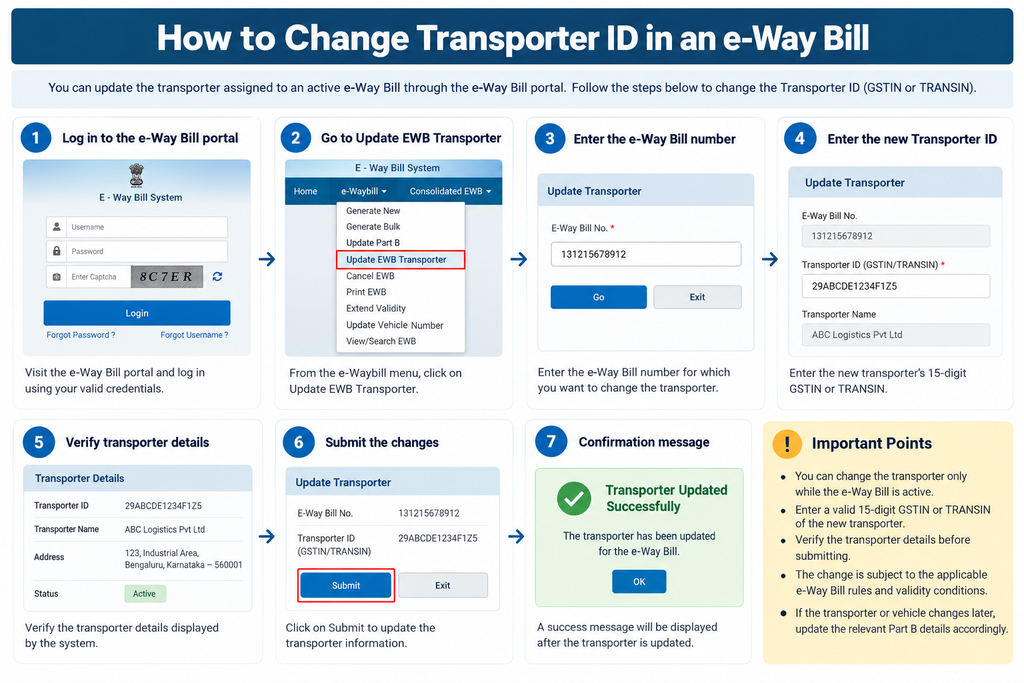
How to Change Transporter ID in an e-Way Bill
You can update the transporter assigned to an active e-Way Bill through the e-Way Bill portal.
- Log in to the e-Way Bill portal.
- Go to e-Waybill → Update EWB Transporter.
- Enter the relevant e-Way Bill number.
- Enter the new transporter’s GSTIN or TRANSIN.
- Verify the transporter details displayed by the system.
- Submit the updated transporter information.
The transporter can be changed only while the e-Way Bill is active and subject to the applicable e-Way Bill rules and validity conditions.
Multiple Invoices under Transport ID
When an unnotified e-Way Bill is generated against a Transport ID, the e-way bill portal acts as a connected system, and the transporter is notified about the assignment of EWB via the portal.
Using one of the following techniques, a transporter can obtain e-Way Bills created on a transport ID:
- After logging in, the transporter checks the reports area in the EWB portal and chooses “EWB assigned to me for transfers and sees the list.”
- The transporter could access “Update Vehicle No” and choose “Generator GSTIN” before entering the GSTIN of the taxpayer who gave him the EWB.
Creating Multiple Sub-users under Transport ID
Every registered supplier or transporter can create several sub-users and assign them duties. The person can offer additional offices or business locations as sub-users for large transporters. The registered user may add up to three sub-users for one registered place of business.
Read to know more about Create & Manage Sub-user on the e-Way Bill Portal
Businesses generating e-Way Bills regularly can also use e-Way Bill software to create e-Way Bills from invoice details and enter the relevant Transporter ID and Part B information.
FAQs on Transporter ID
Is a transporter ID mandatory for e-Way Bills?
A Transporter ID is required when goods are assigned to a transporter. If the consignor or consignee transports the goods themselves, their own GSTIN can be entered instead. A Transporter ID is also required when generating a Part-A Slip for a transporter who will later update Part B.
How do I remove my transporter ID from my e-Way Bill?
Once generated, the e-Way Bill cannot be removed from the website for e-Way Bills. However, it is revocable within 24 hours of formation by the GST taxpayer or the transporter.
Can e-Way be generated without a transporter ID?
Yes, in certain cases. If the consignor or consignee transports the goods themselves, their GSTIN can be entered instead of a separate Transporter ID. When goods are assigned to an external transporter who will update Part B, the transporter’s GSTIN or TRANSIN is required.
How do I change my transporter ID?
Here are the steps to change the transporter ID:
- Log up to the e-Way Bill Portal.To access your account, go to the e-Way Bill Portal.
- Revisit the transporter’s specifications. Proceed to the e-way bill page’s Update transporter data.
- Enter the new transporter ID.
