
Record Supplier Purchases
Purchase Invoice
Record supplier purchases, add item and tax details, update stock and use Mira AI to scan purchase bills in myBillBook.
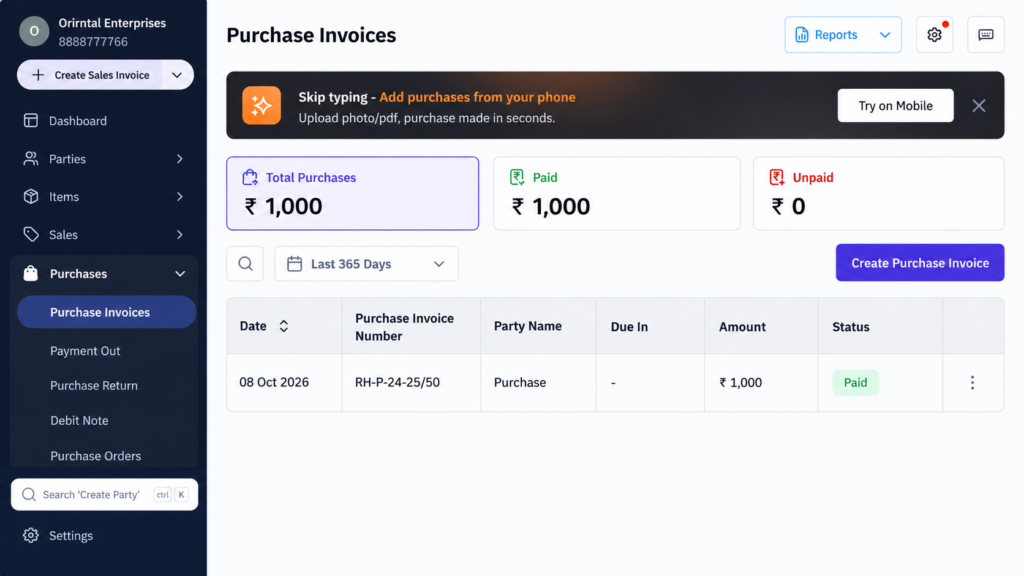
Purchase Invoice Feature in myBillBook
The Purchase Invoice feature in myBillBook lets you record supplier bills with party, item, quantity, rate, tax, payment and reference details. Once saved, the purchase is added to your purchase records and the related item stock is updated.
Because Purchase Invoices work inside the same billing software for businesses you use for sales, inventory and payments, supplier purchases stay connected with the rest of your day-to-day records.
How to Create a Purchase Invoice in myBillBook
Step 1: Open Purchase Invoices
Go to Purchases → Purchase Invoices and select Create Purchase Invoice.
Step 2: Select the Supplier
Choose an existing supplier or add a new party if the supplier is not already available in your business records.
Step 3: Add Purchased Items
Add the products or services included in the supplier bill and enter the required quantity, rate and applicable tax details.
Step 4: Add Purchase and Reference Details
Enter supporting information such as Purchase Order number, notes, terms, additional charges or attachments where required.
Step 5: Record Payment Details
Record the applicable payment amount and payment mode, or leave the balance payable when the supplier invoice has not been fully settled.
Step 6: Review and Save
Check the entered supplier, item, tax and payment details and save the purchase invoice. The purchase is recorded and the related stock is updated.
Record Complete Supplier Purchase Details
Add Multiple Items in One Purchase
Record all applicable products or services from the supplier bill in the same Purchase Invoice instead of creating separate entries for each item.
Enter Quantity, Rate and Tax
Capture the quantity, purchase rate and applicable tax information for each line item so the recorded purchase matches the supplier bill.
Record Full or Partial Payments
Save the invoice as paid, partially paid or payable depending on how much has been settled with the supplier.
Use the Right Payment Mode
Record payments using available modes such as Cash, UPI, Card, Net Banking, Bank Transfer or Cheque. Payment activity can then stay connected with the relevant cash and bank records.
Record Purchase Bills with Mira AI
Upload the Supplier Bill
From the Purchase Invoice workflow, use the Mira AI scan option to upload a supported PDF, JPG, JPEG or PNG purchase bill.
Extract Purchase Details Automatically
Mira AI can extract supplier, item, HSN, tax and total details from the uploaded bill so you do not have to enter every field manually.
Review Before Saving
Check the extracted details, correct any mapping when required and save the Purchase Invoice only after reviewing the bill information.
Resume Incomplete Scans
If a scan is started but not completed, the pending scan can remain available under Incomplete Scans so you can return and finish recording the bill later.
Use Smarter Purchase Bill Mapping
Remember Item Corrections
If a supplier uses a different item name from the one already present in myBillBook, you can correct the match. Mira AI can remember that correction for future scans in the same business.
Detect New Suppliers and Items
When the scanned bill contains a supplier or item that is not already available, the scan workflow can identify it as new so it can be created while saving the purchase.
Identify Scan-Created Purchases
Purchase bills created through the Mira AI scan workflow can be identified separately from manually entered purchases, helping users recognise how the invoice was recorded.
Reduce Repeated Manual Entry
Use Scan & Record when a supplier bill already contains the required purchase information and you want to bring those details into myBillBook faster.
Keep Purchase Records Connected with Stock
Update Item Stock After Purchase
When a Purchase Invoice containing stock items is saved, the related quantity is reflected in your inventory records. For item-level stock controls such as low-stock levels, batches, serial numbers and valuation, see the Inventory feature.
Check Previous Purchase Prices
For repeat supplier-item combinations, myBillBook can show recent purchase-price history so you can compare the current rate with prices used previously.
Use Purchase Orders Before Invoicing
If your buying process begins with an order to the supplier, use purchase order management before recording the final supplier invoice.
Handle Purchase Adjustments After Invoicing
Link a Debit Note to the Purchase
When a purchase needs an adjustment or return, the relevant Purchase Invoice can be linked in the Debit Note workflow so eligible purchase details can be reused instead of entered again.
Keep the Original Purchase Record Available
Use the appropriate purchase-adjustment workflow instead of changing unrelated records so the supplier purchase and its later adjustment remain easier to trace.
Review Purchase Activity in Reports
Purchase entries also feed into broader reporting views. Use business reporting tools when you need to review purchases alongside sales, stock and other business data.
Important Things to Know About Purchase Invoices
Purchase Invoice and Purchase Order Are Different
A Purchase Order is used before buying to place or record an order with a supplier. A Purchase Invoice records the supplier bill after the purchase transaction.
Scan Results Should Be Reviewed
Mira AI reduces manual entry, but extracted supplier, item, tax and total details should still be checked before the Purchase Invoice is saved.
Purchase Invoice and Expense Are Different Workflows
Use Purchase Invoices for supplier purchases and stock-related buying. Use the Expenses feature for operating costs that are not being recorded as inventory purchases.
Stock Updates Depend on the Items Recorded
Inventory changes are relevant to stock items included in the saved purchase. Non-stock or service entries should not be treated as physical inventory movement.
Where Purchase Invoices Help
Stock Purchases
Record supplier bills for products bought for resale and keep the related quantities reflected in stock.
Repeat Supplier Purchases
Reuse supplier records and compare recent item purchase prices when buying the same products again.
Large Supplier Bills
Use Mira AI Scan & Record when a purchase bill contains many lines and manual data entry would take longer.
Paid and Payable Purchases
Record the amount already paid and keep the remaining supplier balance payable when the invoice is not fully settled.
Frequently Asked Questions
How do I create a Purchase Invoice in myBillBook?
Go to Purchases, open Purchase Invoices, select Create Purchase Invoice, choose the supplier, add the purchased items, quantity, rate, tax and payment details, review the bill and save it.
Does a Purchase Invoice update stock in myBillBook?
Yes. When a saved Purchase Invoice contains stock items, the related purchased quantities are reflected in inventory records.
Can I scan a supplier bill instead of entering it manually?
Yes. The Mira AI Scan & Record workflow can extract supplier, item, HSN, tax and total details from supported purchase-bill files for review before saving.
What happens if I do not finish a scanned purchase bill?
An unfinished scan can remain available under Incomplete Scans so you can return and complete the Purchase Invoice later.
Can myBillBook remember corrected item mappings from scanned bills?
Yes. When you correct a supplier item mapping in the Mira AI workflow, that correction can be remembered for future scans in the same business.
Can I record a partially paid Purchase Invoice?
Yes. A Purchase Invoice can record the amount already paid while keeping the remaining supplier balance payable.
Is a Purchase Invoice the same as a Purchase Order?
No. A Purchase Order is used before buying to place or record the order, while a Purchase Invoice records the supplier bill after the purchase.