
Track Items & Stock
Inventory
Track item stock, prices, units, batches, serial numbers, barcodes and stock reports from the Inventory feature in myBillBook.
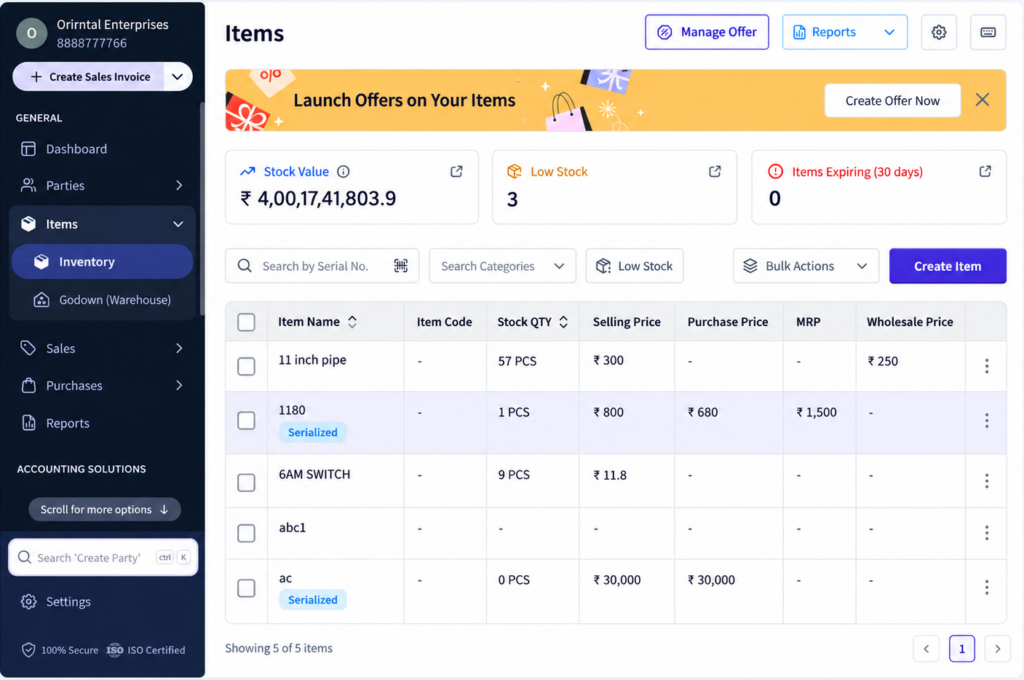
Inventory Feature in myBillBook
The Inventory feature in myBillBook gives you one place to create items, maintain stock details and monitor item movement as you record day-to-day business transactions.
Along with basic stock tracking, you can manage low-stock levels, alternate units, batches, serial or IMEI numbers, barcodes, stock valuation settings and inventory reports based on the way your business handles items.
When inventory management is connected with billing software, businesses can manage sales, purchases and stock records together, reducing the need to update inventory separately after every transaction.
How to Manage Inventory in myBillBook
Step 1: Open Items & Inventory
Go to the Items or Inventory section in myBillBook to view your item list and available stock details.
Step 2: Create or Select an Item
Add a new item or open an existing item that you want to manage.
Step 3: Add Stock and Pricing Details
Enter the opening stock or available quantity along with the purchase price, selling price, unit and applicable tax details.
Step 4: Configure Item-Level Inventory Options
Where required, set a low-stock level, alternate units, batch details, serial or IMEI numbers, and barcode-related information for the item.
Step 5: Use the Item in Sales and Purchases
As supported transactions are recorded in myBillBook, the related item stock is reflected in your inventory records.
Step 6: Review Stock and Reports
Use stock summaries, low-stock visibility and other inventory reports to review item quantities and stock value.
Track Stock and Item Details
View Available Stock
Check item quantities from the inventory view so you can see the stock currently recorded for each item.
Maintain Purchase and Selling Prices
Keep purchase price, selling price and tax details attached to the item and update them when required.
Set Low-Stock Levels
Define a minimum stock level for selected items so low-stock visibility can help you identify items that need attention.
Use Alternate Units
Set alternate units and conversion ratios for items that are bought or sold in more than one unit, such as boxes and pieces or kilograms and grams.
Manage Detailed Item Tracking
Batch Tracking
Maintain batch information such as batch number, quantity, manufacturing date and expiry details for items where batch-level tracking is needed.
Serial & IMEI Tracking
Assign individual serial or IMEI numbers to supported items and use them during transaction entry for uniquely identifiable stock.
Bulk Serial Number Entry
When working with multiple serialised units, paste multiple serial numbers together instead of entering every number one by one.
Serial Summary Report
Review serial-number movement and stock status using the Serial Summary Report for supported serialised items.
Control Stock Value and Inventory Reports
Choose a Stock Valuation Basis
myBillBook lets you choose how stock value is calculated using purchase price or sales price, with or without tax, based on the available stock-value settings.
Review Stock Summary
Use Stock Summary to check item-wise stock information and the calculated stock value based on your selected valuation method.
Review Low Stock Summary
See items that have reached the configured low-stock level and prioritise replenishment accordingly.
Keep Valuation Consistent Across Reports
The selected stock-value method is reflected across supported inventory and accounting views such as Items & Inventory, Stock Summary, Low Stock Summary, Profit & Loss and Balance Sheet.
Important Things to Know About Inventory
Batching and Serialisation Are Different Item Tracking Methods
For an individual item, batching and serialisation are separate tracking approaches and should be configured according to the way that item is managed.
Barcode Customisation Is a Web Workflow
The advanced barcode label customisation and multi-item printing workflow is currently available on Web.
Low-Stock Visibility Depends on the Item Threshold
Set the required minimum stock level for an item before relying on low-stock visibility for that item.
Multi-Location Stock Has Its Own Feature
This page covers the core Inventory feature. For stock control across multiple storage locations, use the Godown Management feature.
Where Inventory Tracking Helps
Retail Items
Track item quantity, pricing, low-stock levels and barcodes for products sold regularly.
Batch-Based Products
Maintain batch and expiry information for items where stock needs batch-level identification.
Serialised Products
Track individual serial or IMEI numbers for electronics, appliances and other uniquely identified items.
Items Sold in Multiple Units
Use alternate units and conversion ratios for products handled in different purchase and sales units.
Frequently Asked Questions
Does myBillBook update stock when I record sales and purchases?
Supported sales and purchase transactions are reflected in the related item stock records in myBillBook.
Can I set low-stock levels for items?
Yes. You can define a minimum stock level for selected items and use low-stock visibility to identify items that need attention.
Can I manage batches and serial numbers in Inventory?
Yes. myBillBook supports batch tracking for applicable items and serial or IMEI tracking for uniquely identified stock. They are separate item-tracking methods.
Can I print barcodes from myBillBook?
Yes. The Web barcode workflow supports label customisation, multi-item printing and up to 100 labels per item.
Can I choose how stock value is calculated?
Yes. Available stock-value settings let you calculate stock using purchase price or sales price, with or without tax.
Does this page cover Godown Management?
No. This page covers the core Inventory feature. Stock across multiple storage locations is covered separately by the Godown Management feature.