
Business Report Access
Business Reports
View transaction, item, inventory, and party reports from one place
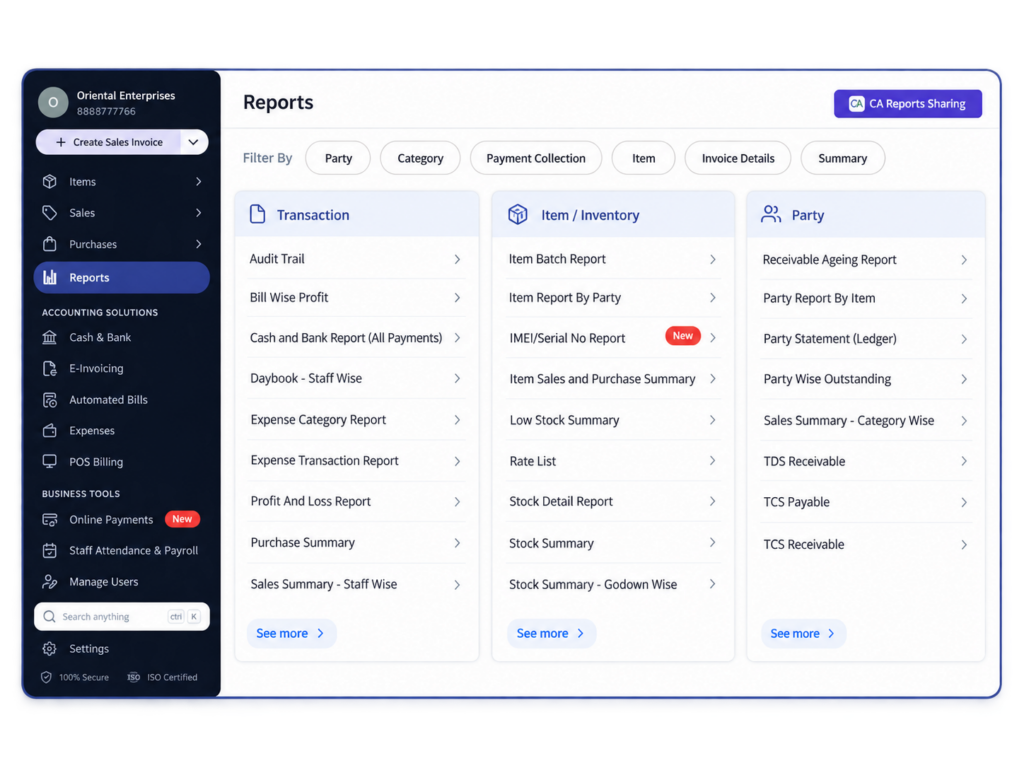
Business Reports Feature in myBillBook
Business Reports in myBillBook bring together transaction, item, inventory, and party-level reports in one Reports section.
You can use these reports to review recorded business activity such as payments, expenses, profit, purchases, sales, stock, item movement, customer or supplier balances, and receivables.
How to Access Business Reports in myBillBook
Step 1: Open Reports
Log in to myBillBook and select Reports from the main dashboard menu.
Step 2: Choose the Report Category
Open the relevant section such as Transaction, Item, or Party.
Step 3: Select the Required Report
Choose the report you want to review based on your business requirement.
Step 4: Use Report Filters
Use the available report filters such as Party, Category, Payment Collection, Item, Invoice Details, or Summary where relevant.
Step 5: Review the Report
Check the report data for the selected business activity, item, stock, or party.
Why Use Business Reports in myBillBook?
Transaction Reports Available in myBillBook
Audit Trail
Review recorded activity and changes tracked in the business account.
Bill Wise Profit
Review profit information at the individual bill level.
Cash and Bank Report (All Payments)
View payment records across cash and bank transactions.
Daybook – Staff Wise
Review daybook activity grouped by staff.
Expense Category Report
View recorded expenses grouped by expense category.
Expense Transaction Report
Review individual expense transactions recorded in the business.
Profit And Loss Report
View business income and expenses to review profit or loss for the selected period.
Purchase Summary
Review a summary of recorded purchases.
Sales Summary – Staff Wise
Review sales performance grouped by staff.
Item and Inventory Reports Available in myBillBook
Item Batch Report
Review item information batch-wise for products managed with batches.
Item Report By Party
Review item-level activity in relation to selected parties.
IMEI/Serial No Report
Track items recorded with IMEI or serial numbers.
Item Sales and Purchase Summary
Compare item-level sales and purchase activity in a summary view.
Low Stock Summary
Identify items with low available stock.
Rate List
Review item rates maintained in the business.
Stock Detail Report
View detailed stock information for recorded items.
Stock Summary
Review a summarized view of current item stock.
Stock Summary – Godown Wise
Review stock quantities separated by configured godowns.
Party Reports Available in myBillBook
Receivable Ageing Report
Review outstanding receivables based on how long they have remained pending.
Party Report By Item
Review a party’s activity in relation to specific items.
Party Statement (Ledger)
View the party ledger with recorded transactions and balance movement.
Party Wise Outstanding
Review pending receivable or payable amounts party-wise.
Sales Summary – Category Wise
Review sales summary grouped by the configured category.
Filter and Find Reports Faster
The Reports dashboard includes quick filters such as Party, Category, Payment Collection, Item, Invoice Details, and Summary. These filters help narrow the available report list based on what you want to review.
myBillBook also provides a Find Report option on the Reports screen to help locate a report directly.
CA Reports Sharing in myBillBook
myBillBook includes a dedicated CA Reports Sharing option from the Reports dashboard. This keeps accountant-related report sharing connected to the reporting workflow instead of requiring a separate feature area.
Use the CA Reports Sharing option when you need to share business report information with your CA from the Reports section. The exact reports and access available should be reviewed on the sharing screen before sending.
GST Reports on myBillBook
GST, HSN, TDS, TCS, and GST-return-related reports are covered separately under the dedicated GST Reports feature. Keeping GST reporting separate makes it easier to distinguish tax and compliance reports from day-to-day business reports.
Who Can Use Business Reports?
Business Owners
Review sales, purchases, profit, expenses, stock, and party balances from recorded business data.
Inventory Teams
Use stock, batch, serial number, rate list, and godown-wise reports for inventory review.
Accounts Teams
Review party ledgers, receivables, payments, expenses, profit and loss, and other business reports.
Frequently Asked Questions
What business reports are available in myBillBook?
myBillBook provides transaction, item and inventory, and party reports from the Reports section. These include reports such as Audit Trail, Bill Wise Profit, Profit and Loss, Stock Summary, Low Stock Summary, Party Statement, Party Wise Outstanding, and Receivable Ageing.
Does the Business Reports page include GST reports?
No. GST, HSN, TDS, TCS, and GST-return-related reports are covered separately under the dedicated GST Reports feature in myBillBook.
Can I view stock reports in myBillBook?
Yes. myBillBook includes item and inventory reports such as Stock Detail Report, Stock Summary, Stock Summary - Godown Wise, Low Stock Summary, Item Batch Report, and IMEI/Serial No Report.
Can I check party outstanding and ledger reports?
Yes. Party reports include Receivable Ageing Report, Party Report By Item, Party Statement (Ledger), Party Wise Outstanding, and Sales Summary - Category Wise.
What is CA Reports Sharing in myBillBook?
CA Reports Sharing is available from the Reports dashboard and is used to share business report information with your CA as part of the reporting workflow.
How can I find a specific report in myBillBook?
The Reports dashboard provides filters such as Party, Category, Payment Collection, Item, Invoice Details, and Summary, along with a Find Report option.