
Record Business Costs
Expenses
Record GST and non-GST business expenses, organise them by category and keep day-to-day costs reflected in your business accounts.
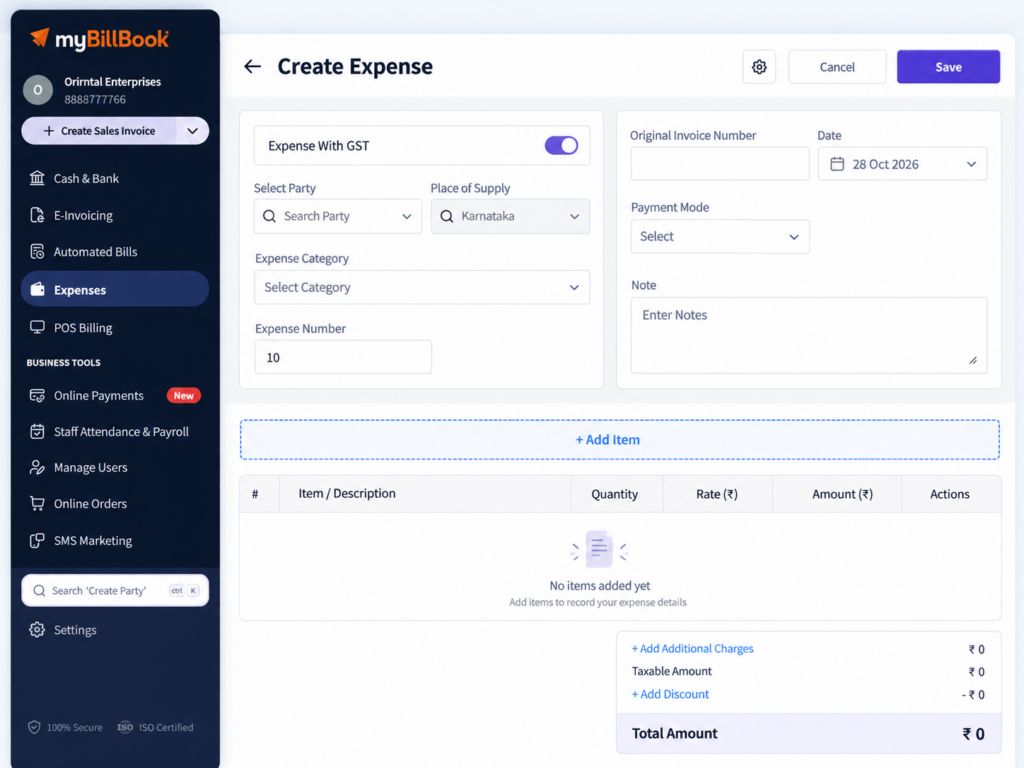
Expenses Feature in myBillBook
The Expenses feature in myBillBook lets you record operating costs that are not being entered as inventory purchases. You can create GST or non-GST expense entries, organise them under categories and keep those costs connected to your accounts.
Because Expenses works inside the same billing software you use for day-to-day business transactions, you can keep billing and operating costs in one workflow instead of maintaining a separate expense sheet.
How to Record an Expense in myBillBook
Step 1: Open Expenses
Go to Expenses from the left menu and open the expense list.
Step 2: Create a New Expense
Select Create Expense to start a new expense voucher.
Step 3: Choose GST or Non-GST
Select the appropriate expense type depending on whether GST applies to the cost you are recording.
Step 4: Select the Expense Category
Choose an existing expense category or create a new one using the category management option.
Step 5: Add the Expense Item and Reference Details
Select or create the relevant expense item and add the invoice or reference number when you need to retain the source reference for the cost.
Step 6: Review and Save
Check the entered details and save the expense. The saved entry becomes available in the Expenses list and contributes to the relevant business reports.
Record and Organise Business Expenses
Record GST Expenses
Create a GST expense entry when the cost includes applicable GST details and needs to be recorded accordingly.
Record Non-GST Expenses
Use the non-GST expense option for business costs where GST does not apply to the expense entry.
Create Expense Categories
Use categories to organise costs such as rent, electricity, travel, repairs or other operating expenses. You can select an existing category or add one that matches your business.
Use Dedicated Expense Items
Expense items are maintained separately from stock items, helping keep operating costs distinct from inventory purchases. For broader bookkeeping and account-level workflows, myBillBook also supports financial accounting use cases.
What the Expenses Feature Helps You Do
Keep Operating Costs Recorded
Store recurring and one-time business expenses in myBillBook instead of maintaining separate manual notes.
Separate Expenses from Purchases
Use expense entries for operating costs while keeping stock and supplier purchases in their appropriate purchase workflow.
Organise Costs by Category
Group entries under meaningful expense categories so your cost records remain easier to review.
Edit Saved Expense Entries
Open an existing saved expense when you need to correct or update its recorded details.
See Expenses in Your Financial View
Reflect Recorded Expenses in Profit & Loss
Saved expense entries contribute to the expense side of your Profit & Loss view, helping you understand how operating costs affect business profitability. If you want to understand the statement structure itself, see the Profit and Loss account format guide.
Review Expenses with Other Business Numbers
Use the reporting section to look at expenses alongside other business performance data instead of reviewing expense vouchers in isolation.
Keep Accounting-Generated Expenses Separate
Some accounting actions can create expense-side entries independently of the standard Create Expense workflow. For example, a settlement discount recorded through the Payment In Discount feature is treated separately from a manually created expense voucher.
When to Use Expenses in myBillBook
Rent and Utility Costs
Record rent, electricity, internet and similar operating expenses under the appropriate category.
Travel and Business Running Costs
Use expense entries for applicable travel, local conveyance and other business-running costs.
Repairs and Maintenance
Record repair or maintenance costs that are not being treated as stock purchases.
Other Non-Inventory Costs
Use Expenses when the transaction represents a business cost rather than inventory being purchased for resale or stock.
Important Things to Know About Expenses
Expenses and Purchases Are Different Workflows
Use Expenses for operating costs and the purchase workflow for supplier purchases or stock-related transactions. This helps keep inventory and business-cost records separated correctly.
Expense Items Are Separate from Inventory Items
Creating an expense item does not make it an inventory item. Expense items are used specifically for expense recording.
GST Treatment Depends on the Expense
Select GST or non-GST based on the actual expense being recorded and the applicable tax treatment for that transaction.
Bank Statement Expense Creation Is Not a Current Feature
Expenses should be created through the available expense workflow. Do not assume that uploading a bank statement will automatically create expense vouchers.
Frequently Asked Questions
How do I create an expense in myBillBook?
Open Expenses, select Create Expense, choose GST or non-GST, select the category and expense item, add the required details and save the entry.
Can I create custom expense categories?
Yes. You can select an existing expense category or create and manage categories that match the costs your business records.
Are expense items the same as inventory items?
No. Expense items are maintained separately from inventory items and are used for recording operating costs rather than stock.
Can I edit a saved expense?
Yes. Existing saved expense entries can be reopened and edited when their recorded details need to be corrected or updated.
Do expenses appear in Profit & Loss?
Recorded expense entries contribute to the expense side of your Profit & Loss view and help show how operating costs affect business profitability.
Is an expense the same as a purchase?
No. Expenses are generally used for operating costs, while purchase transactions are used for supplier purchases and stock-related buying workflows.