
Business Management
Manage Multiple Businesses
Add and manage more than one business in myBillBook, then switch between them from the same account based on the business limit included in your plan.
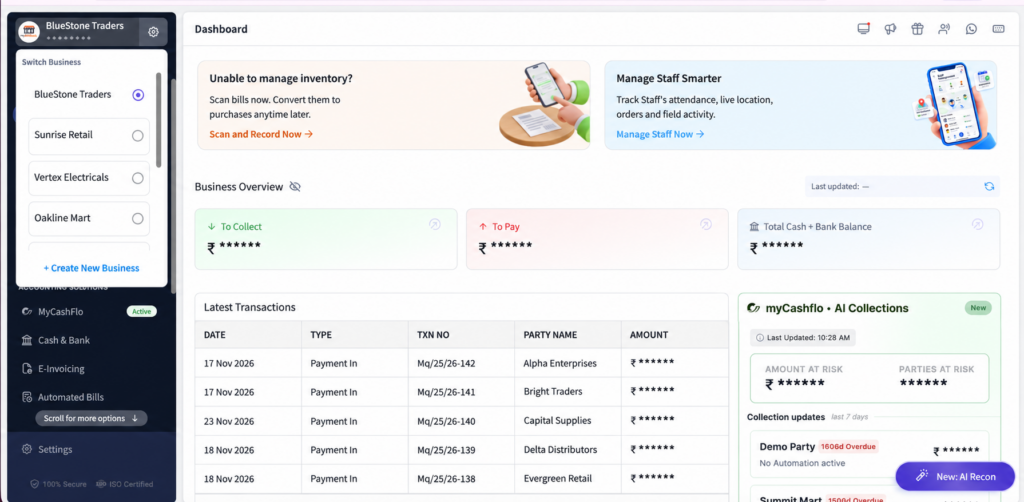
Manage Multiple Businesses in myBillBook
The multiple-business capability in myBillBook billing and invoicing software lets you keep more than one business under the same account when your plan includes additional business access. You can also use Cloud Accessibility to open your myBillBook account from supported platforms.
Tap the current business name to open the business switcher. From there, you can open another existing business or select + Create New Business. Each business opens in its own business context, so you can work with the records that belong to the selected business.
How to Add a New Business in myBillBook
Step 1: Open the Business Switcher
Click the current business name to view the businesses connected with your account.
Step 2: Select + Create New Business
Use the + Create New Business option shown below the existing business list.
Step 3: Enter the New Business Details
Complete the business setup information requested by myBillBook for the new business.
Step 4: Complete the Setup
Save the new business after completing the required details and validation.
Step 5: Start Managing the New Business
Once added, the new business becomes available in your account so you can start managing its billing, purchases, inventory, payments and other business records.
How to Manage Multiple Businesses in myBillBook
After adding more than one business, you can manage each business separately from the same myBillBook account. Open the business you want to work on and use the records and workflows linked to that business.
Work in the Selected Business
Invoices, purchase invoices, parties, inventory, cash and bank records and other available business data are handled within the business you currently have open.
Manage Each Business from the Same Account
When multiple-business access is available, you can manage connected businesses from the same myBillBook account instead of creating a separate account for every business.
Use Separate User Access Where Required
If staff members need access to a particular business, use Manage Users and assign their access separately rather than sharing the admin login.
How to Switch Between Businesses in myBillBook
Step 1: Click the Current Business
From the myBillBook dashboard, click the current business name shown in the business panel or company header.
Step 2: Open the Business Switcher
The switcher shows the businesses already connected with your account.
Step 3: Select Another Business
Choose the business you want to work on from the list.
Step 4: Continue in the Selected Business
myBillBook opens the selected business so you can continue billing, accounting and other available workflows for that business.
How Business and User Limits Depend on Your Plan
The number of businesses and users you can add in myBillBook depends on the limits included in your current subscription.
Business Limit
Your plan determines how many businesses can be connected with the account. If the included business limit has been reached, adding another business can require an upgrade.
User Limit
User access is also plan-based. The number of additional users you can add can vary from the number of businesses included.
Upgrade When More Access Is Required
When you try to add more businesses or users than your current plan allows, myBillBook can show the relevant upgrade option. Plan inclusions can change, so check the current plan details before adding another business or user.
Frequently Asked Questions
Can I manage more than one business in myBillBook?
Yes, when your myBillBook plan includes access to more than one business. You can switch between connected businesses from the business switcher.
How do I switch businesses in myBillBook?
Click the current business name on the dashboard, open the business switcher and select the business you want to work on.
How do I add another business in myBillBook?
Open the business switcher and select + Create New Business. Complete the required business setup details and save the new business.
Are the records of different businesses combined in myBillBook?
No. You work inside the selected business context, and its invoices, parties, items, reports and other records remain associated with that business.
How many businesses can I add in myBillBook?
The number of businesses you can add depends on the business limit included in your current myBillBook plan. If the limit is reached, adding another business may require an upgrade.
Are business limits and user limits the same in myBillBook?
Not necessarily. The number of businesses and the number of users included are separate plan limits and can vary by subscription.