
Role-Based Staff Access
Manage Users
Add staff to myBillBook, assign predefined roles and control access to sales, stock, accounting and sensitive admin actions.
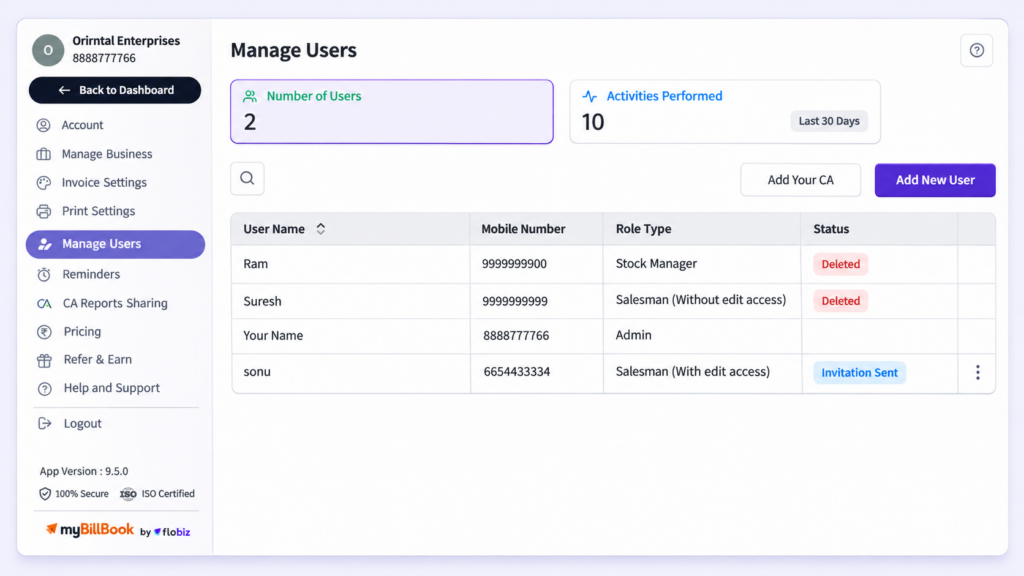
Manage Users / User Access in myBillBook
The Manage Users feature in myBillBook lets a business owner or admin add staff members to the business and assign predefined roles so each person gets access suited to their work.
Because user access works inside the same billing and business software used for sales, inventory, accounting and payments, you can let employees work in myBillBook without giving every user complete control of the business.
How to Manage User Access in myBillBook
Step 1: Open Manage Users
Go to the Manage Users section from the myBillBook menu.
Step 2: Add the Staff Member
Add the user details required to give the staff member access to the business.
Step 3: Assign a Predefined Role
Select the role that best matches the user’s responsibility, such as sales, stock, delivery, accounting or business administration.
Step 4: Save the User
Save the user so the assigned role and its permitted actions are applied to that account.
Step 5: Review Access When Responsibilities Change
If the staff member’s responsibilities change, review the user setup and update the role where appropriate.
Give Staff Role-Based Access
Sales Roles
Give sales staff access to the sales tasks they need while keeping more sensitive business actions restricted based on the assigned role.
Stock Roles
Use stock-oriented roles for staff who need access to item and inventory-related tasks without giving them unrestricted control over the full business account.
Accounting Roles
Where supported, accounting-focused roles can be used for users who need access to relevant financial or reporting workflows.
Admin and Partner Roles
Higher-level roles can access more sensitive controls and business settings than operational staff roles.
Protect Sensitive Actions with User Permissions
Restrict Sales Editing
Use the available sales roles to limit whether a salesperson can edit sales vouchers instead of giving every sales user the same level of control.
Limit Stock Settings
Some item-level settings are available only to selected roles, helping keep stock-related configuration under tighter control.
Keep Admin-Only Actions
Sensitive actions such as deleting bank accounts are limited to admin-level access, helping protect financial records from accidental changes.
Apply Permissions Across Features
User roles continue to affect access to supported actions across myBillBook rather than applying only inside the Manage Users screen.
Examples of Access Controls in myBillBook
Sales Voucher Access
Sales roles can be configured so a staff member can work on permitted sales activity without automatically receiving unrestricted edit access.
Item-Level Discount Settings
Current product permissions limit item-level discount configuration to selected higher-access roles such as Admin, Partner, Stock Manager and Accountant.
Bank Account Deletion
Deleting a bank account is an admin-only action, reinforcing that sensitive Cash & Bank operations are protected by user access rules. For that workflow, see the Cash & Bank feature.
Inventory Responsibilities
For staff focused on item and stock work, role-based access can complement the Inventory feature without opening every part of the business account.
Important Things to Know About User Access
Roles Are Predefined
The current Manage Users experience is based mainly on predefined roles. Do not treat it as a fully custom permission builder where every permission can be toggled individually.
Not Every Role Has the Same Access
Available actions vary by role, so the role should be selected according to the staff member’s actual responsibility.
Feature Permissions Can Apply Beyond the User Screen
Role checks can affect actions inside sales, inventory, discounts, banking and other supported workflows.
Review Access When Staff Responsibilities Change
Update the assigned role when an employee moves into a different responsibility so the user’s access remains appropriate.
Where User Access Helps
Sales Teams
Let sales staff handle permitted billing work without automatically giving them full control over business settings.
Stock Teams
Give inventory-focused staff the access needed for their responsibilities while keeping unrelated financial controls restricted.
Accountants and Partners
Use higher-access roles for users who need broader visibility or configuration rights across supported business workflows.
Multi-Staff Businesses
Allow multiple staff members to work inside the same myBillBook business while keeping role boundaries in place.
Frequently Asked Questions
Can I give staff access without giving them full control?
Yes. Role-based access lets you give staff the permissions associated with their assigned role instead of unrestricted access to the business.
Can I restrict sales editing for a salesperson?
Yes. myBillBook supports sales roles that can limit edit access for sales vouchers.
Are user permissions fully customizable?
No. The current system is based mainly on predefined roles and should not be treated as a fully custom permission builder.
Can user roles affect actions outside the Manage Users screen?
Yes. Role permissions can affect supported actions in areas such as sales, stock, discounts and Cash & Bank.
Is Manage Users the same as Staff Attendance & Payroll?
No. Manage Users controls access to the myBillBook business account, while attendance and payroll are separate staff-management workflows.