
Counter Billing
POS Billing
Create counter bills faster in myBillBook by adding or scanning items, completing bill details and saving or printing the POS sale.
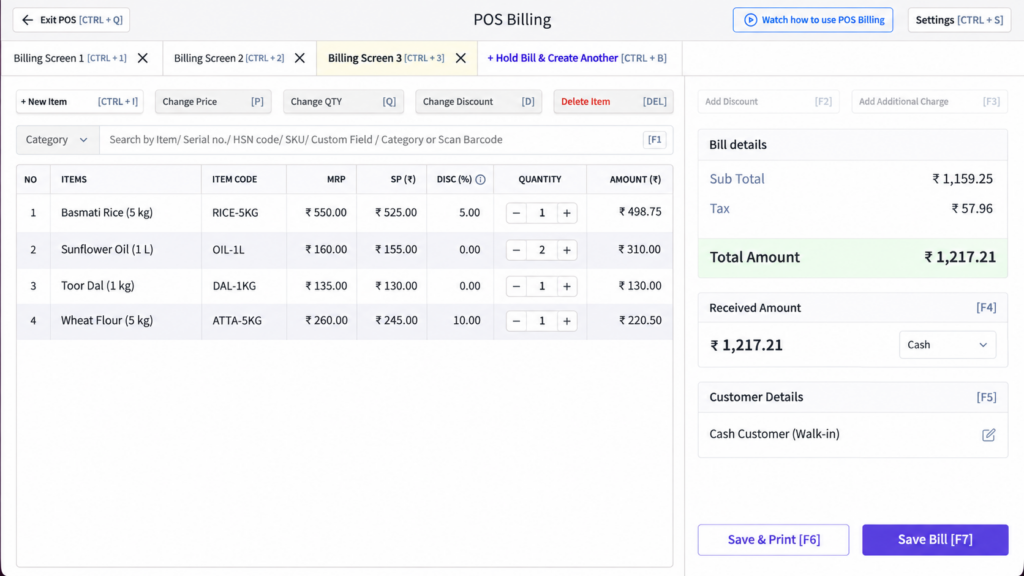
POS Billing in myBillBook
POS Billing in myBillBook is the counter-billing flow used to quickly add items to a bill, complete the required sale details and save or print the transaction.
You can search for saved items using their name or item code, or use barcode scanning where supported. The POS screen keeps the billing workflow focused on completing the sale rather than the broader invoicing setup available in regular sales invoicing.
How to Create a POS Bill in myBillBook
Step 1: Open POS Billing
Open POS Billing from the myBillBook navigation to start a new counter sale.
Step 2: Add Items to the Bill
Search for the product using its item name or item code, or scan the linked barcode where supported.
Step 3: Review the Item Details
Check the quantity, price and other bill values for the items added to the POS bill.
Step 4: Add the Customer When Required
Select the party or customer when you want the sale to be linked with their details.
Step 5: Complete the Bill Details
Add the supported discount, additional charge, item description, Notes or other required POS bill details.
Step 6: Select the Payment Mode
Choose the payment mode used for the POS sale.
Step 7: Save or Save & Print
Use Save Bill [F7] to save the transaction, or Save & Print [F6] to save it and continue into the print workflow.
Ways to Add Items During POS Billing
Search by Item Name
Find the required product from the items already saved in your business.
Search by Item Code
Enter the item’s saved code when you want a quicker way to find the product.
Scan the Barcode
Use the barcode linked with the item to identify and add it during supported POS billing workflows.
Bill Details You Can Add Before Saving
Keep the POS bill limited to the details needed to complete the counter sale.
Customer or Party
Link the bill with a saved customer when their details need to be recorded with the sale.
Quantity, Price and Discount
Review the item quantity and price, and apply the supported discount where required. For item-wise MRP discount settings, see Discount on MRP.
Additional Charges
Add a named additional charge when another amount needs to be included in the POS bill.
Item Description and Notes
Add item descriptions or bill-level Notes where the transaction needs extra information.
Payment Mode
Record the payment mode used to complete the POS sale.
Save or Print a POS Bill
Save Bill
Use Save Bill [F7] when you want to complete and save the POS transaction without printing it immediately.
Save & Print
Use Save & Print [F6] when you want to save the POS bill and continue into the printing flow.
Complete the Print Flow
The print workflow can open the printer selection or print-preview step before the bill is physically printed. When you use compact receipt formats, you can also review the Thermal Print options available in myBillBook.
Frequently Asked Questions
How do I add items in POS Billing?
You can search for an item using its saved item name or item code, or scan its linked barcode where barcode scanning is supported.
Can I add a customer to a POS bill?
Yes. You can select a party or customer when the POS sale needs to be linked with their details.
Can I add discounts and additional charges in POS Billing?
Supported POS bill details can include discounts and named additional charges before the transaction is saved.
Can I add Notes to a POS bill?
Yes. myBillBook supports Notes in the POS billing flow, and item descriptions can also be added where required.
How do I print a POS bill in myBillBook?
Use Save & Print [F6] to save the POS transaction and continue into the print workflow. Printer selection or print preview can appear before the final print.
Is POS Billing the same as the regular Sales Invoice screen?
No. POS Billing is focused on faster counter sales, while the regular Sales Invoice workflow provides a broader set of invoice fields, preview options and invoice settings.