
Invoice Printing
Thermal Print
Print customer invoices from myBillBook using regular A4 or A5 formats, or compact 2-inch and 3-inch thermal print formats.
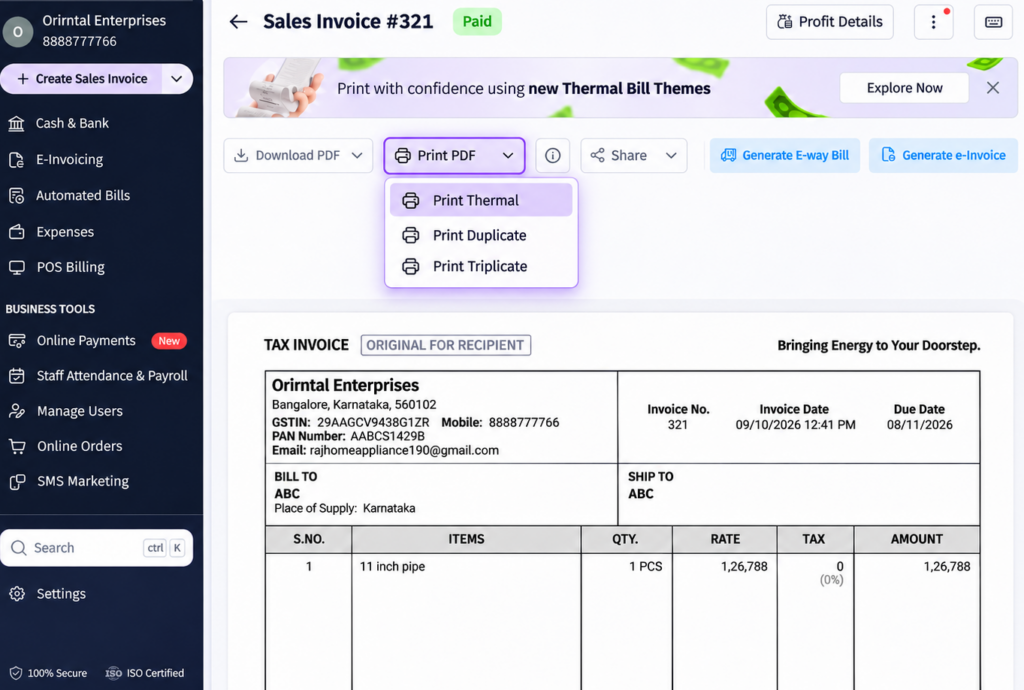
Invoice Printing in myBillBook
myBillBook lets you print invoices in different formats depending on how you want to hand over the bill to your customer. For regular invoice printing, you can use A4 or A5 formats. For compact counter receipts, you can use supported 2-inch or 3-inch thermal print formats.
The thermal printing feature works from the invoice workflow, so the printed bill stays connected with the invoice you created in myBillBook. On supported Web settings, you can also choose a thermal theme and control the details that appear on the printed receipt.
What Print Types Are Available in myBillBook?
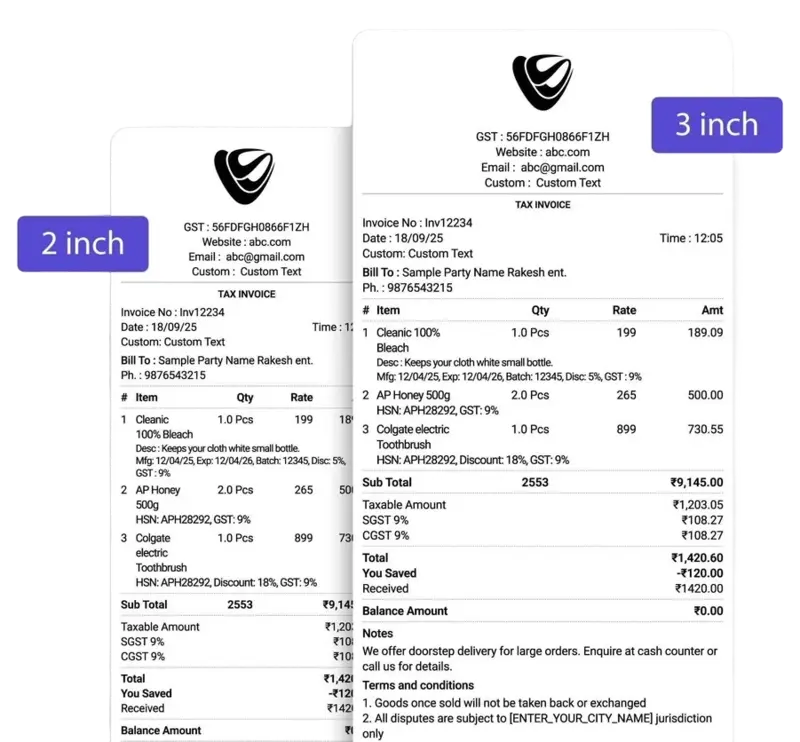
Thermal Prints
Use the supported 2-inch or 3-inch thermal format for narrow, or wider customer receipts at the billing counter.
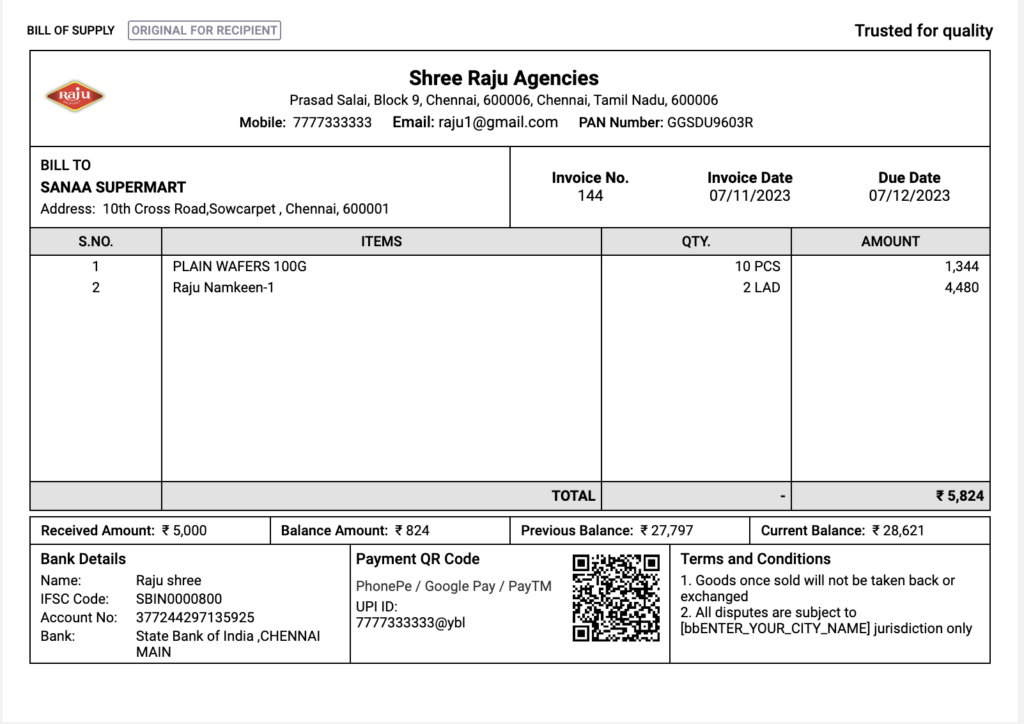
A5 Print
Use A5 when you want a smaller regular invoice while still keeping the bill in a standard paper format.
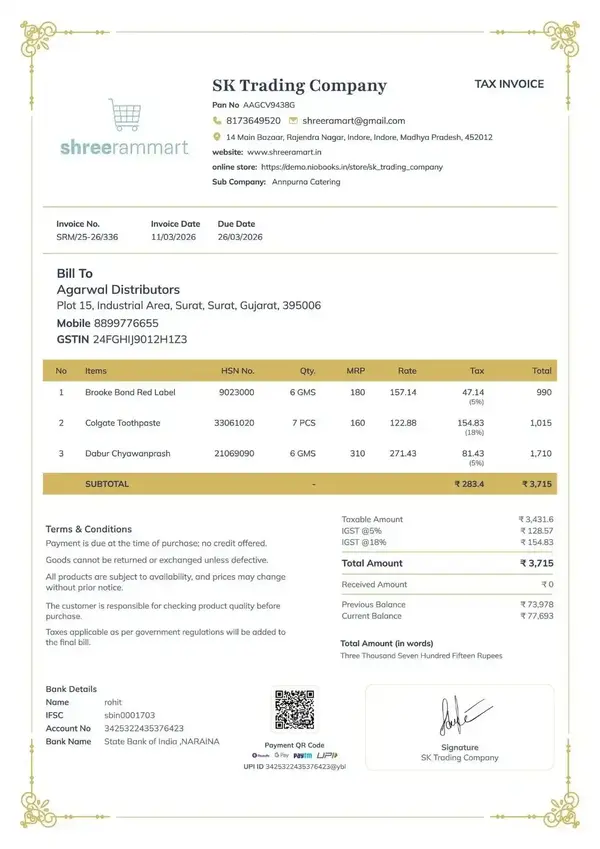
A4 Print
Use A4 when you need a full-size regular invoice with more space for customer, item, tax and payment details.
What Details Can You Show on a Thermal Bill?
Depending on the selected thermal layout and settings, a thermal bill can show the business and transaction information your customer needs.
Business Details and Logo
Show business information such as the business name, address and contact details. On supported Web thermal layouts, you can also add your business logo.
Item and Pricing Details
Thermal bills can include fields such as Item Code, Quantity, MRP, Rate, Discount, Tax and Amount.
Subtotal, Discount and MRP Details
Thermal themes can show Subtotal and Total Discount. Where enabled for the item, Discount on MRP can also appear on the thermal bill.
Invoice Timestamp
When the invoice timestamp setting is enabled, the transaction time can appear on thermal printouts.
How to Choose a Thermal Print Theme in myBillBook?
On Web, go to Settings → Print Settings → Thermal Print Settings. Choose the thermal theme you want to use and save the setting before printing.
Compact
Choose Compact when you want a shorter receipt with fewer columns and less printed information.
Advanced
Choose Advanced when you need more detailed item information, additional columns or longer item names.
Simple
Choose Simple for a balanced thermal bill that keeps the main transaction details easy to read.
Classic
Choose Classic when you prefer a more traditional thermal bill layout with a simpler presentation.
How to Print a Thermal Bill in myBillBook
Step 1: Create or Open the Invoice
Open the invoice you want to print and review the customer, item, tax and total details.
Step 2: Preview the Bill
Open the invoice preview and check how the bill details appear before printing.
Step 3: Open the Print Option
Use the Print action from the invoice preview.
Step 4: Select Thermal Print
Choose the thermal printing option from the available print actions.
Step 5: Review the Thermal Print Settings
Check the selected thermal theme, receipt layout and supported fields before printing.
Step 6: Choose Additional Copies if Required
Select duplicate or triplicate copies when your billing process needs more than one physical copy of the same thermal bill.
Step 7: Print the Thermal Bill
Send the final receipt to the supported thermal printer configured with your device.
Where Is Thermal Printing Useful?
Retail Counters
Print compact customer receipts when bills need to be handed over quickly at the counter.
High-Volume Billing
Use thermal formats when your counter handles frequent transactions and you need shorter printed bills.
Businesses That Need Multiple Copies
Use duplicate or triplicate printing when more than one physical invoice copy is required.
Branded Customer Receipts
Use supported logo and business-detail settings when you want the thermal receipt to carry your business identity.
Frequently Asked Questions
What print formats are available in myBillBook?
myBillBook supports regular A4 and A5 invoice printing, along with supported 2-inch and 3-inch thermal invoice print formats.
Can I print a thermal bill in myBillBook?
Yes. Open the invoice, preview it, choose the Print option and select the supported thermal print workflow for a 2-inch or 3-inch thermal bill.
What is the difference between A4, A5 and thermal printing?
A4 and A5 are regular invoice print formats. Thermal printing uses compact 2-inch or 3-inch receipt formats for customer bills.
What thermal print themes are available on Web?
The supported Web thermal print settings include Compact, Advanced, Simple and Classic themes.
Can I add my business logo and item details to a thermal bill?
Supported thermal layouts can show business details, a business logo and item fields such as Item Code, Quantity, MRP, Rate, Discount, Tax and Amount.
Can I print duplicate or triplicate invoice copies?
Yes. The printing workflow supports additional invoice copies where duplicate or triplicate printing is required.
Does changing a thermal theme change the saved invoice?
No. Changing the thermal theme changes the printed layout only. It does not change the saved invoice or transaction values.