
Accountant Access
CA Access
Add your CA to myBillBook with a separate login so they can access the business information and reports available to the CA role without using your account.
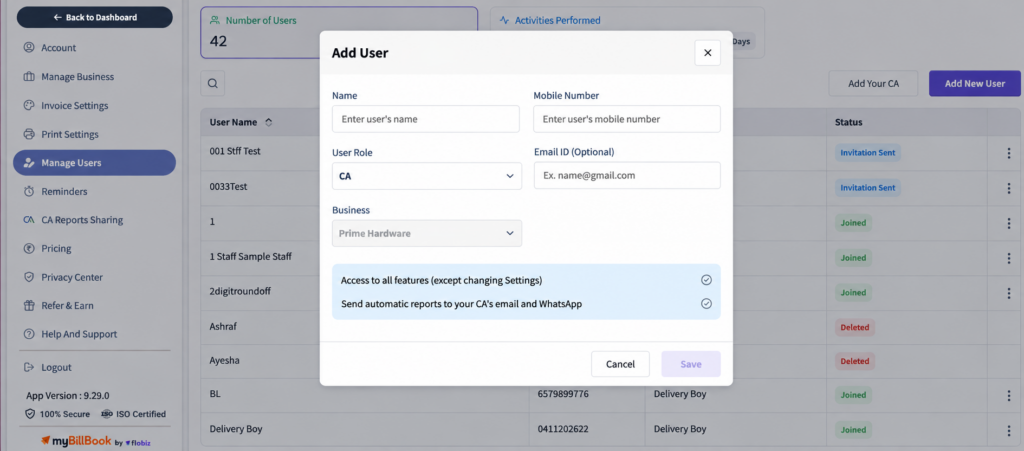
CA Access in myBillBook
CA Access in myBillBook billing and accounting software lets a business owner add their Chartered Accountant or accountant as a separate user. The CA signs in with their own mobile number and accesses the business through the predefined CA role.
This keeps the CA’s access separate from the owner’s login while giving them access to the business information and reports available to that role. CA permissions are predefined in myBillBook and cannot currently be customised report by report.
How to Add Your CA in myBillBook
Step 1: Open Manage Users
Go to Manage Users in myBillBook to view the users connected with your business.
Step 2: Select Add Your CA
Choose Add Your CA to start adding the accountant who needs access to the business.
Step 3: Enter the CA Details
Add the CA’s details and mobile number so their access can be linked to the correct person.
Step 4: Send the Invitation
Save the CA user. Until the CA joins, the user can appear with an Invitation Sent status in Manage Users.
Step 5: CA Logs In Separately
The CA can log in to myBillBook using the mobile number added for their account instead of using the business owner’s login.
Step 6: Access the Linked Business
After joining, the CA can open the linked business and use the information and reports available under the CA role.
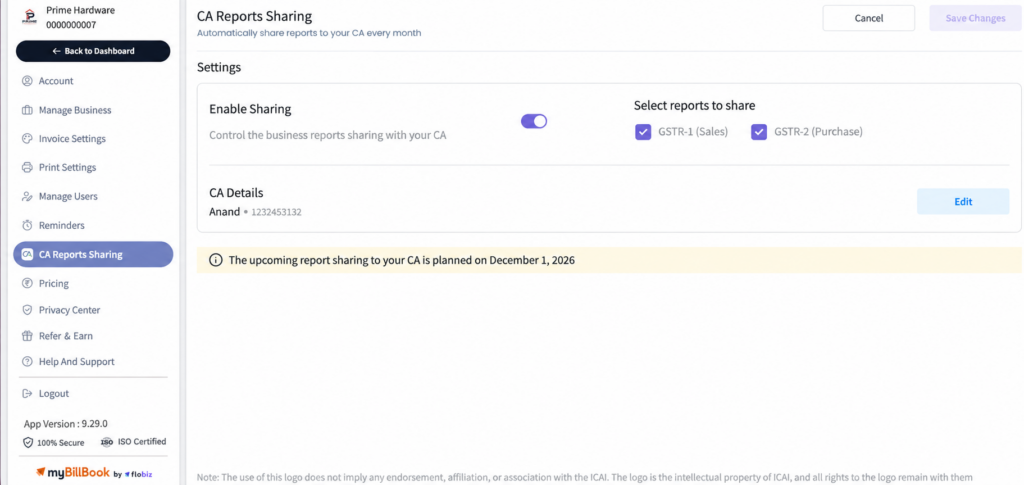
How to Share Reports with Your CA
CA Access and CA Reports Sharing work together, but they are separate options in myBillBook.
Open CA Reports Sharing
Go to Settings → CA Reports Sharing to manage report sharing for your accountant.
Add or Select Your CA
Enter the CA details used for report sharing. If a CA user is already connected with the business, their details can be used in this flow.
Enable Report Sharing
Turn on report sharing when you want myBillBook to automatically share the configured reports with your CA.
Share Reports Manually When Needed
You can also download a report and share it separately through channels such as WhatsApp or email when automatic sharing is not required. For tax and return-related reporting, you can also review GST Reports in myBillBook.
How to Manage CA Access
Manage Users shows the people connected with your business and the current status of their access.
Check the CA Status
A CA user can appear with statuses such as Invitation Sent, Joined, Disabled or Deleted, depending on the current state of the account.
Edit the CA Details
Open the CA user from Manage Users when you need to update the details associated with that account.
Disable or Remove Access
When CA access is no longer required, manage the user from the same user-management flow so the accountant no longer continues with active access to the business.
Frequently Asked Questions
How do I add my CA in myBillBook?
Open Manage Users, select Add Your CA, enter the CA details and mobile number, and save the user. The CA can then log in separately using the invited number.
Can I customise what my CA can see in myBillBook?
CA access uses predefined permissions. Individual reports cannot currently be hidden or enabled separately for the CA role.
What is CA Reports Sharing in myBillBook?
CA Reports Sharing is a separate setting that lets you configure CA details and enable automatic report sharing. Reports can also be downloaded and shared manually when needed.
How can I check whether my CA has joined?
Manage Users shows the status of connected users. A CA can appear with statuses such as Invitation Sent, Joined, Disabled or Deleted depending on the account state.
Does my CA need to use my myBillBook login?
No. The CA uses their own login linked to the mobile number added for the CA account.