
Collect & Record Payments
Online Payments
Collect customer payments through invoice QR codes and payment links, with successful payments recorded automatically in myBillBook
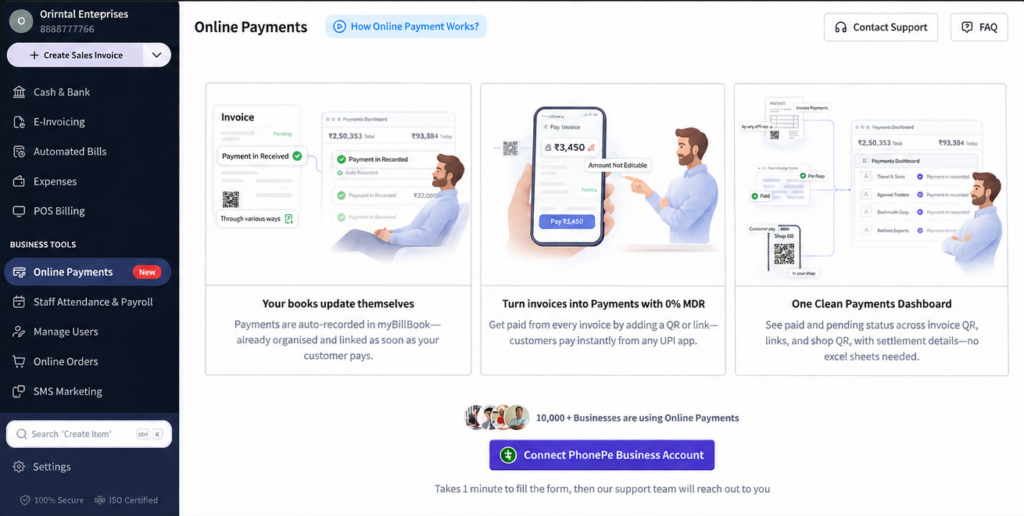
Online Payments Feature in myBillBook
Online Payments in myBillBook is a dedicated payment collection feature that connects your business with a PhonePe Business account. Once enabled, you can collect customer payments from invoices through a PhonePe QR code or Pay Now link.
When a customer completes the payment successfully, myBillBook can automatically create the corresponding Payment-In entry for that invoice, keeping the payment linked to your books without requiring a separate manual Payment-In entry.
The Online Payments dashboard brings payment status and settlement-related information into one place for payments collected through supported myBillBook payment flows.
How Online Payments Work in myBillBook
Step 1: Open Online Payments
Log in to myBillBook and select Online Payments from the Business Tools section.
Step 2: Connect PhonePe Business
Start the setup by selecting Connect PhonePe Business Account and complete the required onboarding process.
Step 3: Create an Invoice with Online Payments Enabled
Create a sales invoice with Online Payments enabled for the customer.
Step 4: Share the Invoice QR or Pay Now Link
A PhonePe QR code and Pay Now link are added to the enabled invoice so the customer can initiate payment digitally.
Step 5: Customer Completes the Payment
The customer pays using a supported UPI app through the QR code or payment link.
Step 6: Payment-In Is Recorded Automatically
After a successful payment, myBillBook records the Payment-In for that invoice automatically and links it to the relevant transaction.
Why Use Online Payments in myBillBook?
What You Can Manage with Online Payments
Invoice QR Payments
Enable Online Payments on an invoice and let the customer pay using the QR code added to that invoice.
Pay Now Links
Provide a payment link along with the invoice so customers can open the payment flow digitally.
Automatic Payment-In Entries
Keep successful customer payments connected with the relevant invoice by automatically recording Payment-In.
Edit and Link Online Payments to Invoices
Manage online payments directly from the Online Payments list in the myBillBook web app. Edit a payment or manually link it to invoices without opening its Payment-In entry.
Each payment displays its linking status:
-
Auto-linked: Automatically linked through the invoice QR code.
-
Linked: Manually linked to an invoice.
-
Link: Not yet linked. Select Link to choose the invoices against which the payment should be adjusted.
Paid and Pending Status
Use the Online Payments dashboard to review whether supported payment requests are paid or still pending.
Settlement-Related Details
Review payment and settlement-related information available in the Online Payments dashboard.
Important Things to Know About Online Payments
PhonePe Business Connection
The current Online Payments setup in myBillBook uses a connected PhonePe Business account.
Online Payments Must Be Enabled
The invoice needs to be created with Online Payments enabled for the PhonePe QR code and Pay Now link to be included in this flow.
Automatic Recording Follows Successful Payment
Payment-In is created automatically after the supported online payment is completed successfully.
Check Current Terms Before Activation
Payment availability, onboarding, MDR terms, settlement timelines, and other commercial conditions may be subject to the current Online Payments and PhonePe Business terms shown during setup.
Where Online Payments Fits with Other myBillBook Features
Payment Reminders
Payment Reminders help you follow up on pending dues. Online Payments gives customers a digital way to complete the payment.
Accounts Receivable
Accounts Receivable focuses on tracking outstanding customer money, ageing, collection follow-ups, and payment history. Online Payments focuses specifically on collecting the payment digitally.
Online Store
Online Store focuses on listing products and receiving customer orders online. Online Payments is a separate payment collection feature built around invoice and supported QR/link payment flows.
Who Can Use Online Payments?
Retailers
Collect invoice payments digitally and keep successful collections connected with billing records.
Wholesalers & Distributors
Share payment-enabled invoices with repeat buyers and reduce manual payment recording.
Service Businesses
Send invoices with a direct digital payment option after completing services or projects.
Growing MSMEs
Centralise invoice collection and payment recording without maintaining a separate manual payment sheet.
Frequently Asked Questions
How do customers pay through Online Payments?
When Online Payments is enabled on an invoice, myBillBook adds a PhonePe QR code and Pay Now link. The customer can use the supported payment flow to complete the payment digitally.
Does myBillBook record an online payment automatically?
Yes. After a supported Online Payments transaction is completed successfully, myBillBook can automatically create the related Payment-In entry for that invoice.
What is the difference between Online Payments and Payment-In?
Online Payments is the customer payment collection flow. Payment-In is the accounting entry used to record money received. A successful Online Payments transaction can automatically create the related Payment-In entry.
Does Online Payments require PhonePe Business?
The current Online Payments setup shown in myBillBook uses a connected PhonePe Business account.
Is Online Payments the same as Payment Reminders?
No. Payment Reminders help you follow up on pending dues, while Online Payments gives customers a digital way to complete payment through enabled invoice QR codes or links.
Does myBillBook charge MDR for Online Payments?
The current Online Payments interface presents this feature with 0% MDR. Businesses should check the latest terms shown during activation because payment and commercial terms can change.