
Barcode Billing Workflow
Barcode Scanning & Printing
Scan item barcodes during billing and print barcode labels for inventory items from myBillBook using supported barcode and label-printing workflows.
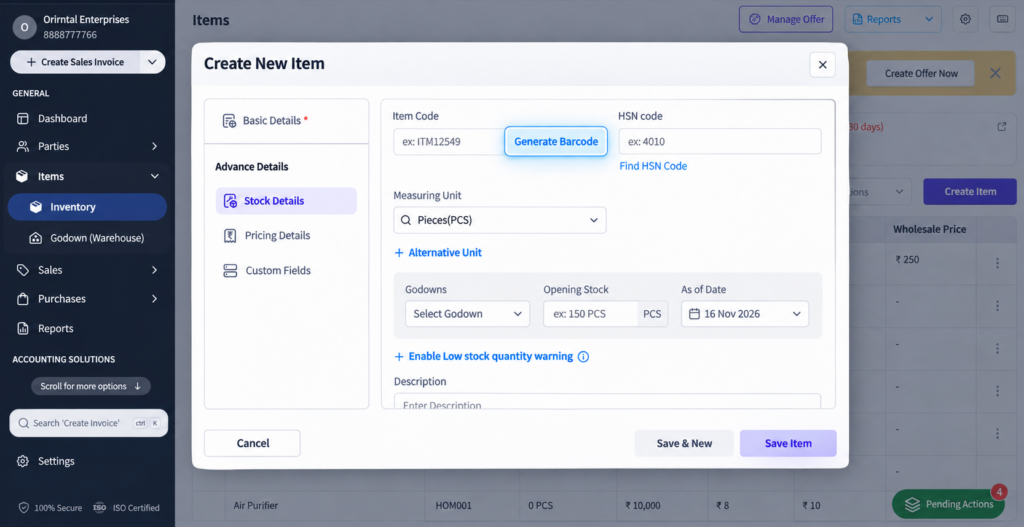
Barcode Scanning & Printing in myBillBook
The Barcode Scanning & Printing feature in myBillBook connects barcode-based item selection with barcode label printing. You can scan a matching item during billing and use the item list to prepare printable barcode labels for stock.
Both workflows sit inside the same billing software for retail businesses, barcode-based billing and barcode label preparation stay connected with your item records instead of becoming separate manual processes.
How to Print Barcode Labels in myBillBook
Step 1: Open Items
Go to the Items section in myBillBook where your inventory items are listed.
Step 2: Select the Items
Select one or more items for which you want to generate and print barcode labels.
Step 3: Open Barcode Printing
Click Print and choose the barcode printing option. The selected items will open in the Barcode Print screen.
Step 4: Set Label Quantities
Choose how many barcode labels you want to print for each selected item.
Step 5: Choose the Label Size
Select the supported label size based on whether you are using a regular printer or a label printer.
Step 6: Customise the Barcode Label
Choose which supported item details should appear on the label, such as Item Name, MRP, Selling Price, Batch Number, Expiry Date or selected custom fields.
Step 7: Preview the Labels
Review the barcode label preview and make any required changes before printing.
Step 8: Download or Print
Download the prepared barcode labels as a PDF or print them directly through the browser.
How Barcode Scanning Works During Billing
Step 1: Open the Billing Screen
Start a supported sales or POS billing flow in myBillBook.
Step 2: Scan the Item Barcode
Use the connected barcode scanner supported by your device and setup.
Step 3: Match the Item
myBillBook identifies the inventory item linked to the scanned barcode or item code.
Step 4: Add the Item to the Bill
The matched item is added to the billing flow so you can continue scanning other products instead of searching for each item manually.
Step 5: Complete the Invoice
Review quantity, pricing, tax and payment details and finish the bill using the normal sales workflow.
Print Barcode Labels from Your Item List
Select Items to Print
Select one or more inventory items and open the barcode printing workflow from the Items section.
Set Label Quantity
Choose how many barcode labels you want to generate for each selected item before printing.
Choose the Label Size
Select a supported barcode label size based on the paper or label printer you plan to use.
Preview and Print
Review the label preview, then download the labels as PDF or print them through the browser.
Choose a Barcode Label Size on Web
Regular Printer Label Sizes
Use supported sizes such as 64 × 38 mm, 42 × 23 mm, 52.5 × 25 mm or 70 × 37 mm when printing barcode labels on compatible sheet layouts.
Label Printer Sizes
Use supported label-printer sizes such as 38 × 25 mm, 50 × 25 mm or 100 × 50 mm when printing directly on compatible barcode labels.
Reuse Saved Barcode Settings
myBillBook can remember saved barcode print settings so you do not have to configure the same label layout every time.
Control What Appears on Barcode Labels
Show Core Item Details
Choose whether supported fields such as Business Name, Item Name, MRP, Selling Price, Batch Number, Manufacturing Date and Expiry Date should appear on the label.
Add Custom Item Fields
On Web, supported custom item fields can be added to barcode labels for details such as Brand, Colour, Material, Category, Rack Number or Internal Code.
Hide Empty Information Automatically
When a selected field is empty for a particular item, myBillBook can omit that empty field from the printed barcode label.
Adjust Font and Emphasis
Use the available label settings to change font size and apply bold styling to selected fields before printing.
Print Barcode Labels for Multiple Items
Manage Several Items in One Print Screen
Select multiple items, search or remove items and manage barcode label printing from one screen instead of preparing labels one item at a time.
Set a Different Quantity for Each Item
Choose the number of labels required for each selected item based on the stock you want to label.
Generate Labels in the Listed Order
Barcode labels are prepared in the same item order shown on the barcode print screen, helping you keep the print batch organised.
Print Up to the Supported Limit
For each item, use the quantity controls within the supported barcode-printing limit before generating the PDF or print job.
Generate Missing Item Codes Before Printing
Identify Items Without a Code
Items without a valid item code are marked so you can see which products are not ready for barcode label generation.
Create the Missing Code from the Print Workflow
Generate the required item code directly from the barcode print screen instead of leaving the workflow to update the item separately.
Print Only Valid Barcode Items
Items without the required code are excluded from printing until the missing code is generated.
Download or Print Barcode Labels Directly
Download Barcode Labels as PDF
Generate a PDF of the prepared barcode labels when you want to save or print them later.
Print from the Browser
Use the browser print dialog to choose the configured printer and print the prepared labels without separate third-party barcode printing software.
Keep Your Settings if Printing Is Cancelled
If you close or cancel the browser print window, your selected items, quantities and barcode settings can remain available so you can adjust and print again.
Important Things to Know About Barcode Scanning & Printing
Scanner Compatibility Depends on Your Device and Setup
Use a supported barcode scanner that is correctly configured with the device and billing workflow you are using. This page does not claim compatibility with every scanner model.
Barcode Label Customisation Is Primarily Web-Based
Current advanced label-size and custom-field controls are available on Web and should not be assumed to work identically on mobile.
Mobile Barcode Actions Are More Limited
Mobile supports barcode actions such as Share, Download and Print, but Web-specific label customisation may not be reflected in the mobile barcode view.
For broader barcode billing software intent, see the dedicated barcode billing software page. For creating standalone barcodes without using your myBillBook inventory, use the free barcode generator. This page focuses only on barcode scanning and label printing inside myBillBook.
Keep Barcode Workflows Connected with Inventory and POS Billing
Barcode labels are tied to the item records you manage in myBillBook. For broader stock controls such as low-stock levels, batches, serial numbers and valuation, use the Inventory feature.
If your main use case is faster counter checkout, use barcode scanning as part of the relevant POS billing workflow.
Where Barcode Scanning & Printing Helps
Fast Counter Billing
Scan product barcodes to find and add matching items during billing instead of searching for every item manually.
New Stock Labelling
Print barcode labels when new stock arrives and items need labels before they are placed on the shelf.
Bulk Label Printing
Prepare labels for multiple inventory items together when several products need to be labelled at the same time.
Detailed Product Labels
Show supported pricing, batch, expiry and custom item information when the label needs more than just the barcode.
Frequently Asked Questions
Can I scan item barcodes during billing?
Yes. In supported billing or POS workflows, a configured barcode scanner can be used to find and add matching inventory items faster.
Can I print barcode labels for multiple items together?
Yes. You can select multiple items, set label quantities and manage them from the Barcode Print screen before generating the PDF or print job.
Can I choose different barcode label sizes?
Yes. On Web, myBillBook supports multiple predefined label sizes for regular printers and label printers.
What information can appear on barcode labels?
Supported labels can include fields such as Business Name, Item Name, MRP, Selling Price, Batch Number, Manufacturing Date, Expiry Date and selected custom item fields.
Can I generate a missing item code before printing?
Yes. If an item is missing the required code, it can be generated from the barcode print workflow before the label is printed.
Do I need separate barcode printing software?
No. The current Web workflow can generate barcode labels as PDF and print them through the browser without separate third-party barcode printing software.