
Pre-Sale Invoice Workflow
Proforma Invoice
Create a pre-sale invoice in myBillBook, share item and pricing details with customers, and convert the confirmed transaction into a Sales Invoice.
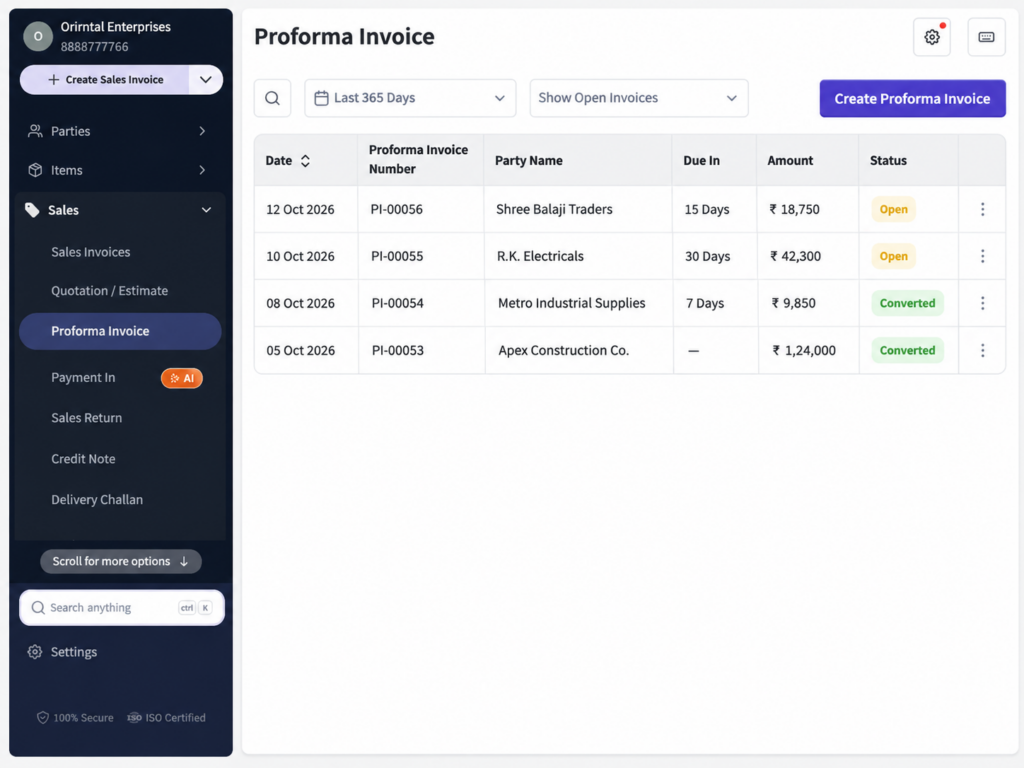
Proforma Invoice Feature in myBillBook
The Proforma Invoice feature in myBillBook lets you create a preliminary sales document before the final sale is completed. Add the customer, items or services, quantities, prices, taxes and discounts, then share the proposed transaction for review.
Because Proforma Invoices are created inside the same business billing software you use for day-to-day invoicing, an approved Proforma Invoice can move into the final sales workflow without recreating the transaction from scratch.
How to Create a Proforma Invoice in myBillBook
Step 1: Open the Proforma Invoice Workflow
Go to the sales-side Proforma Invoice option and start a new document for the customer.
Step 2: Select the Customer
Choose an existing party or add the customer details required for the proposed transaction.
Step 3: Add Items or Services
Add the products or services being proposed and enter the relevant quantity, rate and tax details.
Step 4: Add Discounts and Other Details
Apply the required discount settings and complete the other supported invoice fields needed for the customer-facing document.
Step 5: Preview and Save
Review the Proforma Invoice before saving so the customer, item, price, tax and discount details match the proposed sale.
Step 6: Share or Print the Proforma Invoice
Use the available share or print workflow to send the Proforma Invoice to the customer for review.
Convert an Approved Proforma Invoice into a Sales Invoice
Use Convert to Invoice
Once the customer confirms the transaction, use the available Convert to Invoice action to move the Proforma Invoice into the final sales workflow.
Reuse the Transaction Details
The conversion flow helps carry the existing customer and transaction information forward so the final Sales Invoice does not need to be recreated manually.
Complete the Final Sales Invoice
Review the converted invoice, make any required final changes and save it through the normal Sales Invoice workflow.
Keep Proforma and Final Invoice Roles Separate
The Proforma Invoice is the preliminary document. The converted sales invoice becomes the final billing document for the completed transaction.
Manage Discounts on Proforma Invoices
Use Item-Level Default Discounts
When a default discount is configured for an item, myBillBook can bring that discount into the Proforma Invoice when the item is added. The discount remains editable in the voucher.
Show Discount on MRP
For supported items, Discount on MRP can display the difference between MRP and selling price so the customer can see the saving shown on the Proforma Invoice.
Keep the Two Discount Types
Item-level discount reduces the selling value used in the transaction, while Discount on MRP is used to show the saving compared with the item’s MRP.
Review Discounts Before Sharing
Check the applied discount and final item values in the preview before sending the Proforma Invoice to the customer.
Add Customer-Facing Details to the Proforma Invoice
Preview Before Sharing
Use the invoice preview to check how the customer, item, pricing, tax and supported additional fields will appear on the document.
Add a Receiver’s Signature Field
When enabled, the Receiver’s Signature field can appear on the Proforma Invoice PDF or print copy for businesses that need a customer acknowledgement area.
Use Supported Invoice Settings
Where available in the current invoice-creation experience, use the relevant invoice and item-table settings to control the fields shown on the document.
Keep the Document Consistent with Your Sales Workflow
For broader control over invoice appearance and supported invoice fields, see the Invoice Customization feature.
Proforma Invoice and Quotation Are Separate Pre-Sale Workflows
Both documents can be used before the final sale, but they are separate voucher types inside myBillBook. Use the document that matches the business process you follow with the customer.
If your workflow starts with a quotation or estimate rather than a Proforma Invoice, see the Quotation / Estimate feature.
Important Things to Know About Proforma Invoices
A Proforma Invoice Is Not the Final Sales Invoice
Use it to communicate the proposed transaction before the final sale. Convert it to a Sales Invoice once the customer confirms the transaction.
Invoice Cancellation Does Not Apply to Proforma Invoices
The current Invoice Cancellation workflow is designed for supported Sales Invoices and should not be treated as a Proforma Invoice cancellation feature.
Review Transaction Details Before Conversion
Before converting the Proforma Invoice into the final invoice, confirm that the customer, item, price, tax and discount details still match the agreed sale.
This feature page explains how Proforma Invoice works inside myBillBook. For downloadable Word, Excel and PDF layouts, use the dedicated Proforma Invoice templates page.
When to Use a Proforma Invoice
Price Confirmation Before Sale
Share the expected item, quantity and pricing details with the customer before issuing the final invoice.
Advance Discussion with Customers
Use a Proforma Invoice when the buyer needs a preliminary document before confirming or processing the final transaction.
Orders Requiring Review
Preview and share the proposed sale when customer approval is needed before the final Sales Invoice is generated.
Transactions with Item Discounts
Use supported item-level discounts and Discount on MRP when pricing needs to be shown clearly before the sale is finalised.
Frequently Asked Questions
Can I convert a Proforma Invoice into a Sales Invoice?
Yes. Once the customer confirms the transaction, the available Convert to Invoice workflow can carry the Proforma Invoice into the final sales invoice process.
Can I use item-level discounts on a Proforma Invoice?
Yes. Supported item-level default discounts can appear when the item is added and can be edited in the Proforma Invoice.
Does Proforma Invoice support Discount on MRP?
Yes. When the setting is enabled for supported items, the Proforma Invoice can show the saving compared with the item's MRP.
Can a Receiver's Signature field be shown on a Proforma Invoice?
Yes. When enabled, the Receiver's Signature field can appear on the PDF or printed Proforma Invoice.
Can I cancel a Proforma Invoice using Invoice Cancellation?
No. The current Invoice Cancellation workflow applies to supported Sales Invoices and should not be treated as a Proforma Invoice cancellation feature.
Is this page for downloading Proforma Invoice templates?
No. This page explains the Proforma Invoice feature inside myBillBook. Downloadable Word, Excel and PDF formats are covered on separate template pages.