
Inventory Control Across Locations
Godown Management
Monitor and track inventory across various Godowns and Store locations
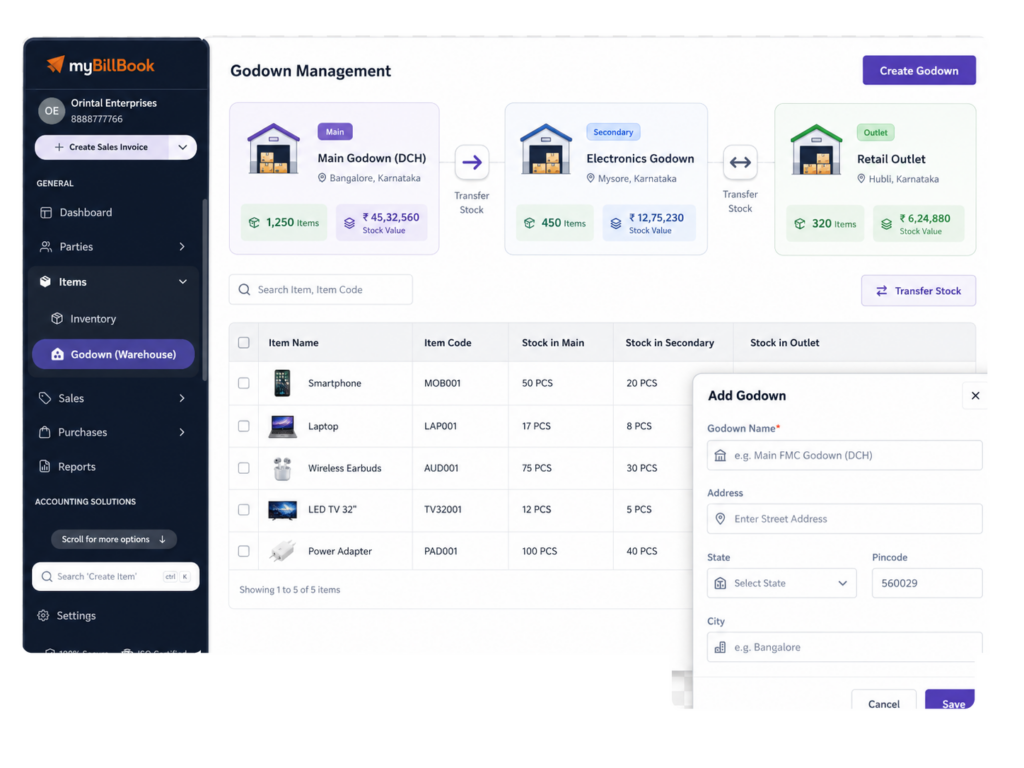
Godown Management Feature in myBillBook
A Godown Management system helps businesses track item quantities across warehouses, branches and storage locations. It records location-wise purchases, sales, adjustments and stock transfers from one system.
Godown/Warehouse Management in myBillBook helps you manage inventory when your stock is stored in more than one location. You can create godowns, assign item quantity to different godowns, select a godown while creating sales or purchase vouchers, and transfer stock from one godown to another.
When Godown is enabled, myBillBook creates a Main Location godown using your business details. Your existing item stock is moved to this main location, and you can manage additional godowns based on your plan.
How to Use myBillBook Godown Feature
Step 1: Open Items
Go to the Items section in myBillBook.
Step 2: Tap Godown Management
Select the Godown (Warehouse) option from the Items screen.
Step 3: Enable Godown
Turn on the Godown feature to start managing stock by location.
Step 4: Create Godowns
Add godown or warehouse names and addresses for your stock locations.
Step 5: Add Stock by Godown
Enter item quantity separately for each active godown or warehouse.
Step 6: Select Godown While Billing
Choose the godown when creating sales, purchase, return, or note vouchers.
Step 7: Transfer Stock
Move stock between godowns when inventory shifts from one location to another.
Benefits of Godown Management Feature
Use Godown Management Feature to Control Your Stock Across Locations
Create Stock Locations
Add godowns or warehouses where your business stores inventory.
Add Location-Wise Stock
Enter item quantity separately for each active stock location.
Select Location While Billing
Choose the godown or warehouse while creating sales and purchase vouchers.
Use the inventory management app to check location-wise stock while creating sales and purchase invoices.
Move Stock When Needed
Transfer inventory from one godown to another when the stock changes location.
Check Item Availability
View where item stock is available before creating bills or transfers.
Adjust Stock by Location
Add or reduce stock for the selected godown or warehouse.
How Stock Moves Across Godowns
Sales Invoice
Select the godown or warehouse from where the stock should be reduced.
Purchase Invoice
Choose the godown or warehouse where the purchased stock should be added.
Returns and Notes
Use godown selection for sales returns, purchase returns, credit notes, and debit notes.
Quotations and Orders
A godown is selected when the quotation, order, challan, or proforma is converted to an invoice.
Godown Management Rules & Limits in myBillBook
Main Location
When Godown is enabled, myBillBook creates a default Main Location for existing stock.
Plan-Based Access
One godown is available by default; additional godowns depend on the user’s plan.
Godown Deletion
A godown can be deleted only after its stock is moved elsewhere.
Service Items
Service items are not managed by godown because they do not carry stock.
Serialized Items
Serialized items stay linked to the Main Location, not multiple godowns.
Batched Items
Batched items can be tracked by godown, with batch selection during stock movement.
Godown Management vs Warehouse Management System
Godown management focuses on location-wise stock, billing and transfers. A specialised warehouse management system may additionally provide bin-level picking, packing, 3PL management and complex fulfilment automation.
myBillBook is suitable for SMEs that need billing-connected inventory control across godowns, shops, branches and storage locations.
Which Businesses Benefit Most from the Godown Feature
Wholesalers
Manage stock stored across the shop, warehouse, and delivery locations.
Manufacturers
Separate raw materials, finished goods, and storage-location stock.
Distributors
Track inventory movement between regional godowns and sales points.
Retail Chains
Manage your item quantity across multiple outlets or different store locations.
Frequently Asked Questions
Why do only some godowns appear while creating an invoice?
Only godowns with positive stock are shown first. You can use Show All Godowns if you need to bill from another location.
Can I use alternate units when Godown is enabled?
Yes. Alternate units can be used while adding items, transferring stock, and adjusting stock.
Can one item be sold from multiple godowns in one invoice?
Yes. While adding an item, you can select godowns based on available stock and billing need.
Can stock transfer entries be edited later?
Yes. Stock transfer entries can be opened from the item timeline and edited or deleted if needed.
Can I use Godown with batched items?
Yes. For batched items, select the batch before adding, adjusting, or transferring stock.