
Adjust Sales Accurately
Credit Note
Create a credit note against a sales invoice in myBillBook and record returns or downward adjustments without recreating the transaction.
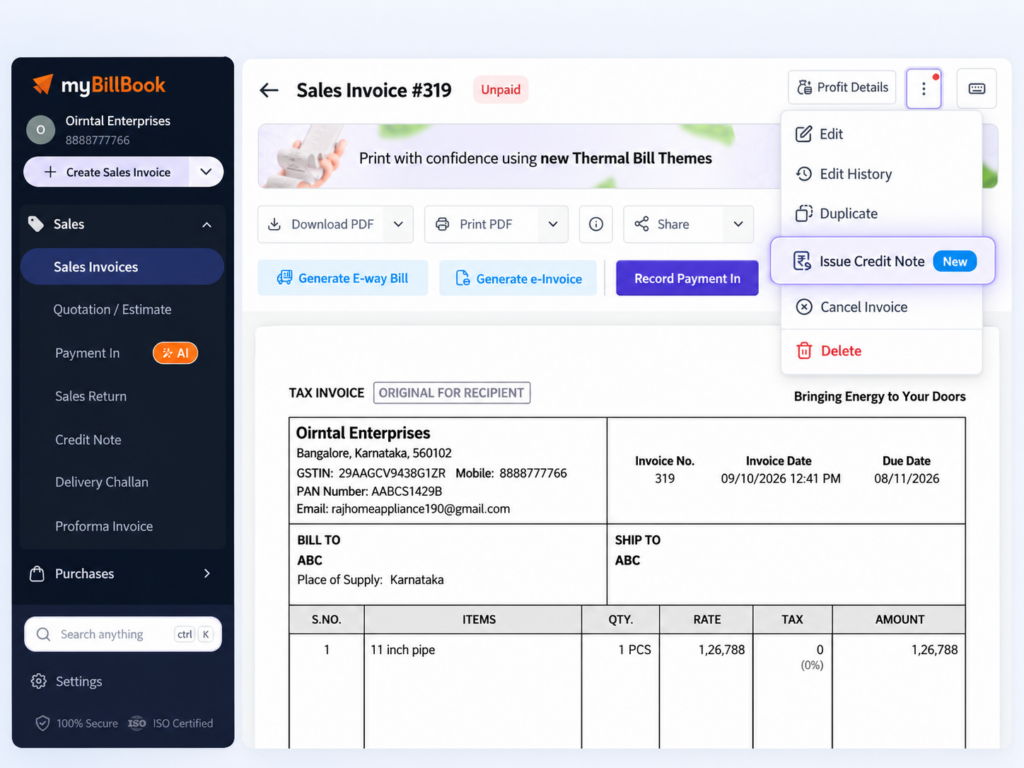
Credit Note Feature in myBillBook
The Credit Note feature in myBillBook billing software helps you record a reduction against an earlier sale. Instead of creating a separate, unrelated document, you can link the credit note to the original sales invoice and use the invoice details as the starting point.
It is useful when goods are returned, the customer was overcharged, or the value of a completed sale needs to be reduced after billing.
How to Create a Credit Note in myBillBook
Step 1: Open Credit Note
Go to the Credit Note option in the Sales section and start a new credit note.
Step 2: Select the Party
Choose the customer for whom the sales adjustment needs to be recorded.
Step 3: Link the Original Sales Invoice
Use the Link to Invoice option to select the relevant sales invoice. This keeps the adjustment connected to the transaction it belongs to.
Step 4: Review the Invoice and Item Details
myBillBook brings the relevant invoice details into the credit note workflow so you do not need to enter the complete transaction again.
Step 5: Adjust the Quantity or Value
For a partial return or partial adjustment, update only the affected quantity or amount instead of crediting the entire sale.
Step 6: Save the Credit Note
Review the details and save the credit note to record the adjustment against the original sale.
What the Credit Note Feature Helps You Do
Link the Adjustment to the Invoice
Keep the credit note connected to the sale being corrected instead of maintaining a disconnected record.
Handle Partial Returns
Change the applicable quantity when only part of the goods from the original sale are being returned.
Reduce Repeated Data Entry
Reuse relevant invoice and item details while creating the credit note.
Keep Sales Adjustments Organised
Maintain credit notes as separate sales adjustment records that can be reviewed from the Credit Note section.
When to Use a Credit Note in myBillBook
Customer Returns Goods
Create a credit note when goods from an earlier sale are returned and the sale value needs to be reduced.
The Customer Was Overcharged
Use a credit note when the original invoice value was higher than the amount that should have been charged.
Only Part of the Sale Needs Adjustment
For partial returns or corrections, adjust only the affected items or quantity rather than reversing the full invoice.
A Post-Sale Downward Adjustment Is Required
Record an adjustment when the value of an already-issued sales invoice needs to be reduced after billing.
What to Check Before Saving a Credit Note
Correct Party
Make sure the selected customer matches the party on the original sales transaction.
Correct Invoice
Link the credit note to the relevant original invoice so the adjustment remains traceable.
Correct Items and Quantity
For partial returns, confirm that only the affected items and quantities are being credited.
Adjustment Amount
Review the value of the credit before saving so the note reflects the actual reduction being given to the customer.
Important Things to Know About Credit Notes
Credit Note Is an Adjustment, Not a Replacement Invoice
Use it to reduce or correct an earlier sale. It does not replace the original sales invoice.
Link the Correct Original Transaction
The invoice-linking workflow is designed to keep the credit note tied to the sale being adjusted, so choose the correct invoice before saving.
Partial Credit Does Not Require a Full Reversal
If only part of the sale is being returned or adjusted, update the affected quantity or value instead of crediting the complete transaction.
GST Treatment Depends on the Transaction
Where GST applies, the credit note should reflect the relevant original transaction and applicable tax details. Businesses should ensure the adjustment follows current GST requirements.
Credit Note Feature vs Credit Note Format
This page is specifically about the Credit Note feature inside myBillBook — how to create a credit note, link it to a sales invoice and record partial or full downward adjustments.
If you are looking for downloadable Word, Excel or PDF templates and the document fields used in a credit note, visit the Credit Note Format page.
Who Can Use the Credit Note Feature?
Retailers
Record customer returns and other reductions against earlier sales invoices.
Wholesalers & Distributors
Handle partial returns, quantity adjustments and B2B sales corrections against existing invoices.
Manufacturers
Record downward adjustments when supplied goods are returned or part of a transaction needs correction.
GST-Registered Businesses
Keep credit notes linked to the corresponding sales transaction while recording applicable tax adjustments.
Frequently Asked Questions
Can I link a credit note to a sales invoice in myBillBook?
Yes. Select the party and use the Link to Invoice option to choose the relevant original sales invoice.
Can I create a partial credit note in myBillBook?
Yes. If only part of the sale is being returned or adjusted, update the affected quantity or amount instead of crediting the complete sale.
When should I use a credit note?
A credit note is commonly used for customer returns, overcharging, partial returns or other downward adjustments against an earlier sales invoice.
Does a credit note replace the original sales invoice?
No. The original sales invoice remains the original transaction. The credit note records the reduction or adjustment against it.
Is this the same as the Credit Note Format page?
No. This feature page explains how Credit Note works inside myBillBook. The Credit Note Format page focuses on downloadable Word, Excel and PDF templates and document-format information.