
Thermal Invoice Printing
Thermal / Normal Printing
Print compact customer bills from myBillBook using supported 2-inch and 3-inch thermal formats, with themes, fields, logo and copy settings.
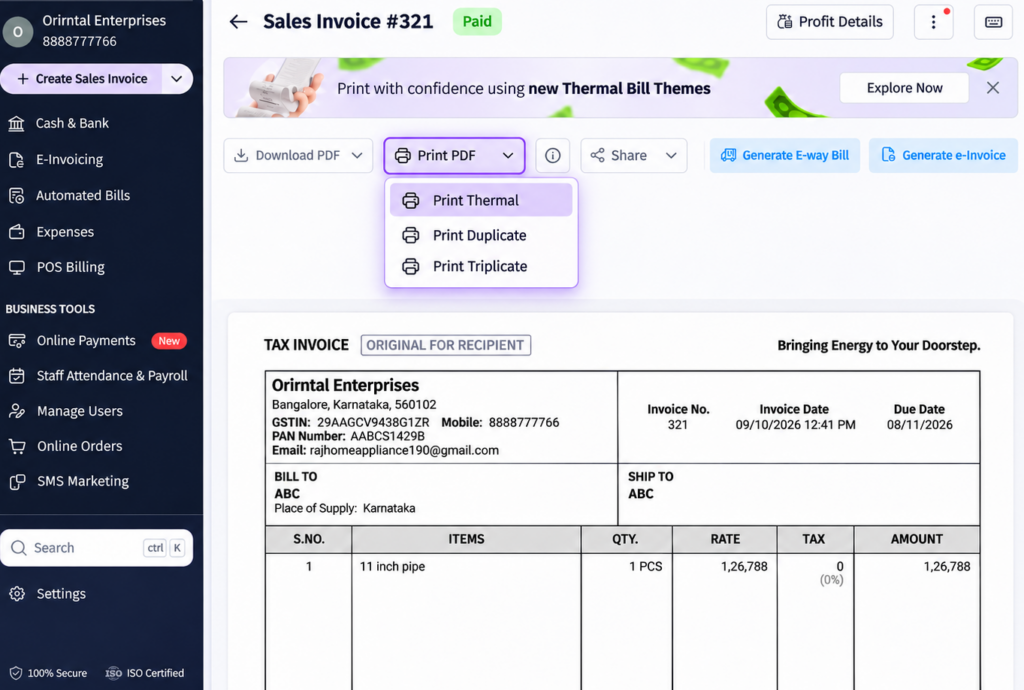
Thermal Printing in myBillBook
The thermal printing feature in myBillBook lets you print compact customer bills directly from the invoice workflow using supported thermal formats. You can preview the invoice, choose the thermal print option and use available settings for receipt layout, visible fields and copies.
Thermal printing is built into the same GST billing software for businesses you use to create invoices, the printed receipt stays connected with the original transaction instead of requiring a separate billing workflow.
How to Print a Thermal Bill in myBillBook
Step 1: Open the Invoice
Create a new invoice or open the saved invoice you want to print.
Step 2: Preview the Bill
Review the customer, items, tax, totals and other visible invoice details before printing.
Step 3: Open the Print Menu
Use the Print option from the invoice preview.
Step 4: Select Print Thermal
Choose the thermal printing option from the available print actions.
Step 5: Review Thermal Print Settings
Check the selected thermal layout, visible fields and other available receipt settings.
Step 6: Print the Thermal Bill
Send the receipt to the supported thermal printer configured with your device.
Choose the Thermal Print Format That Fits Your Counter
2-Inch Thermal Printing
Use supported 2-inch thermal formats when you need a narrow, compact receipt for fast counter billing.
3-Inch Thermal Printing
Use supported 3-inch thermal formats when you need more space for item, pricing and tax details while keeping the bill compact.
Match the Receipt to Your Billing Style
Choose the thermal format and theme based on how much information you want customers to see on the printed receipt.
Print Extra Copies When Required
Use duplicate or triplicate print options when your business needs more than one physical copy of the same invoice.
Choose a Thermal Print Theme on Web
Compact
Use Compact when you want a shorter receipt with fewer columns and less printed information.
Advanced
Use Advanced when you need more detailed item information, additional columns or longer item names.
Simple
Use Simple for a balanced thermal receipt that keeps the main transaction details easy to read.
Classic
Use Classic when you prefer a more traditional thermal bill layout with simpler tax presentation.
On Web, go to Settings → Print Settings → Thermal Print Settings, choose the required theme and save it. Changing the theme changes the printed layout, not the saved invoice data.
Control What Appears on Thermal Bills
Add Your Business Logo
On supported Web thermal layouts, upload the supported logo format from Thermal Print settings so the business logo can appear on printed bills.
Show Business Details
Thermal receipts can show supported business information such as business name, address and contact details.
Show More Item Fields
Where supported, thermal bills can include item fields such as Item Code, Discount and Tax along with Quantity, MRP, Rate and Amount.
Show Subtotal and Total Discount
Newer thermal themes on Web can show Subtotal and Total Discount to make the bill summary clearer.
Add More Details to Thermal Printouts
Show Discount on MRP
On supported Web thermal layouts, Discount on MRP can be reflected on the printed bill when that pricing setting is enabled for the item.
Show Invoice Timestamp
If Show Timestamp on Invoice is enabled, the transaction time can appear on supported thermal printouts.
Use Duplicate or Triplicate Copies
Print additional copies of the same invoice when your billing process requires a customer copy, business copy or another record copy.
Important Things to Know About Thermal Printing
Thermal Printer Support Depends on Your Device and Setup
Use a supported thermal printer that is correctly configured with the device you are printing from. This page does not claim compatibility with every thermal printer model.
Some Thermal Controls Are Web-Specific
Features such as the newer thermal themes and certain print-field controls are available through Web thermal print settings and should not be assumed to work identically on every platform.
Thermal Themes Do Not Change Invoice Data
Changing the thermal print layout affects how the receipt is printed, not the underlying saved invoice or transaction values.
Where Thermal Printing Helps
Retail Counters
Use compact thermal receipts when customers need a quick printed bill at the counter.
High-Volume Billing
Use compact thermal formats when your counter handles frequent billing and you need shorter customer receipts.
Businesses Needing Multiple Copies
Use duplicate or triplicate printing when more than one physical copy is required for the same invoice.
Branded Thermal Receipts
Use supported logo and business-detail settings when you want the printed receipt to carry your business identity.
Frequently Asked Questions
Can I print thermal bills in myBillBook?
Yes. myBillBook supports thermal invoice printing using supported 2-inch and 3-inch thermal formats.
How do I print a thermal bill in myBillBook?
Open the invoice, preview it, open the Print menu, select Print Thermal, review the available thermal settings and send the bill to your configured thermal printer.
What thermal print themes are available on Web?
The current Web thermal print settings include Compact, Advanced, Simple and Classic themes.
Can I add my business logo to thermal bills?
Yes. Supported Web thermal print settings allow a business logo to appear on the printed thermal bill using the supported logo format.
Can thermal bills show item code, discount and tax?
Yes. Supported thermal layouts can show additional item fields such as Item Code, Discount and Tax along with Quantity, MRP, Rate and Amount.
Can I print duplicate or triplicate thermal bills?
Yes. The printing workflow supports additional copies where duplicate or triplicate invoice printing is required.
Does myBillBook support every thermal printer model?
Printer compatibility depends on the thermal printer, device and configuration. The feature should not be treated as universal support for every printer model.