
Serialized Inventory Tracking
Serial Number & IMEI Tracking
Track products by Serial Number or IMEI while buying and selling
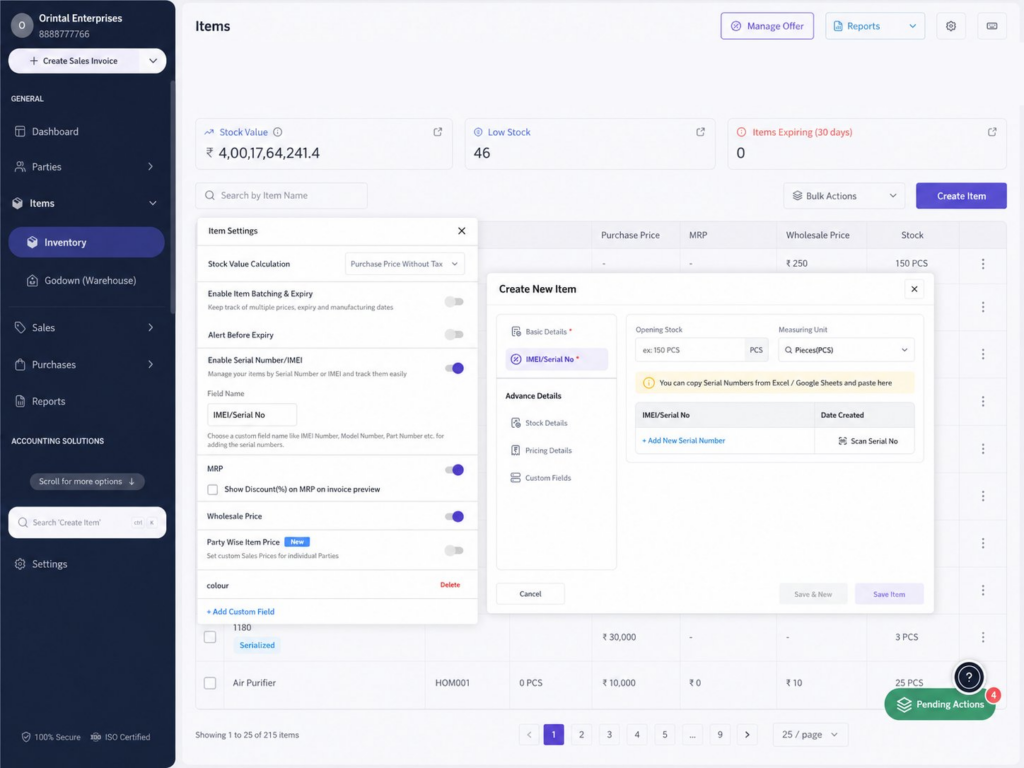
Serial Number & IMEI Tracking Feature in myBillBook
How to Use Serial Number & IMEI Tracking in myBillBook
Step 1: Open Items
Go to the Items section in myBillBook.
Step 2: Open Item Settings
Go to Item Settings and enable the Serial Number/IMEI option.
Step 3: Create or Edit an Item
Open the item and enable tracking by Serial Number or IMEI.
Step 4: Add Serial Numbers
Enter serial numbers manually or use the scanner where available.
Step 5: Select Serial Number While Billing
While creating a sales invoice, select the serial number or IMEI being sold.
How Serialization Improves Inventory Management
Serialization improves inventory management by assigning a unique Serial Number or IMEI to each individual stock unit. In myBillBook, this helps businesses track the exact items available, sold, purchased, or linked to a customer invoice instead of managing stock only by quantity.
Track Inventory at Unit Level
Track each serialized product individually using its Serial Number or IMEI instead of relying only on the total stock quantity.
Maintain Accurate Stock Records
Serial numbers added to an item help identify individual units in stock and distinguish between available and already-sold products.
Track Sold and Unsold Items
Search Serial Numbers or IMEI details to check whether a particular product unit is still available or has already been sold.
Trace Products Back to Invoices
For a sold serialized item, access the associated invoice to identify when and to whom that particular product unit was sold.
Serial Number & IMEI Tracking Capabilities in myBillBook
Custom Serial Number Labels
Use labels such as IMEI, Serial No., or another preferred name for serialized items.
Choose Serialized Items
Select which stock items need to be tracked individually using Serial Numbers or IMEI details.
Manual Serial Number Entry
Enter Serial Numbers or IMEI details manually while adding or updating serialized stock.
Scanner Entry
Use barcode scanning where available to enter Serial Number or IMEI details faster.
Serial Number Search
Search individual Serial Numbers to quickly find and check the status of a particular stock unit.
Invoice Selection
Select the exact Serial Number or IMEI of the product being sold while creating the invoice.
What to Know Before Using IMEI or Serial Number Tracking
Product Items Only
Serialization is meant for stock items, not service items.
No Alternate Units
Serialized items do not support alternate units.
Batch or Serial
For an item, choose either batching or serialisation, not both together.
Unique for Item
Serial numbers should be unique within that item.
Sold Item Tracking
Sold serial numbers can be checked with the invoice details.
Access Control
Only users with relevant item or invoice permissions can manage serial numbers.
Which Businesses Benefit Most from Serialization?
Mobile Phone Shops
Track IMEI numbers for each phone sold to customers.
Electronics Stores
Manage serial numbers for laptops, TVs, accessories.
IT Hardware Sellers
Track devices like computers, servers, and printers.
Frequently Asked Questions
Can I edit a Serial Number or IMEI after adding it?
Yes, unsold serial numbers can be edited if you need to correct a wrong entry.
What happens if I enter the same serial number twice?
myBillBook prevents duplicate serial numbers for the same item, so each unit stays separately trackable.
Can I add multiple serial numbers for one item purchase?
Yes. If you purchase multiple units, you can add separate Serial Number or IMEI details for each unit.
What happens when a customer returns a serialized item?
The returned Serial Number or IMEI can be tracked back as available stock, depending on the return entry.
Can I convert an existing item into a serialized item?
Yes, if the item is eligible. You need to add serial numbers for the available closing stock before saving.