
GST Transport Compliance
e-Way Bill
Generate e-Way Bills from sales invoices, Credit Notes and Sales Returns in myBillBook without re-entering the same transaction details.
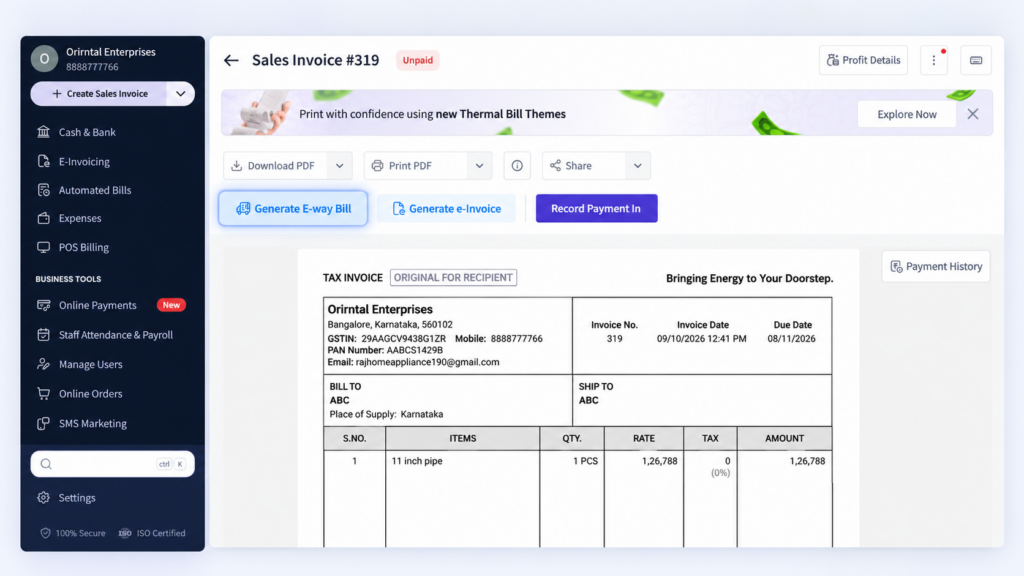
e-Way Bill Feature in myBillBook
The e-Way Bill feature in myBillBook helps businesses generate e-Way Bills directly from supported transactions such as Sales Invoices, Credit Notes and Sales Returns. Instead of entering the same transaction information again on a separate portal, myBillBook reuses relevant voucher details and lets you complete the transport information required for e-Way Bill generation.
For returned goods, businesses can generate an e-Way Bill from a Credit Note or Sales Return. myBillBook automatically sets the Supply Type as Inward and the Sub-Supply Type as Sales Return, reducing manual selection during return transactions.
How to Generate an e-Way Bill in myBillBook
Step 1: Create or Open a Sales Invoice
Start with the sales invoice for the goods being transported. The invoice contains the customer, item, tax and transaction information used in the e-Way Bill workflow.
Step 2: Choose Generate e-Way Bill
From the sales invoice, open the e-Way Bill generation option. If e-Invoicing is applicable to the transaction, myBillBook may also show the relevant combined e-Invoice and e-Way Bill workflow.
Step 3: Complete the Required Setup
For first-time use, complete the required e-Way Bill/GSP setup and save the credentials needed to connect the myBillBook workflow with the government e-Way Bill system.
Step 4: Review Invoice Details
myBillBook carries relevant sales invoice information into the e-Way Bill flow, reducing repeated entry of customer, item and tax details.
Step 5: Add Transport Details
Enter the transport information required for the shipment, such as approximate distance and the applicable transporter, mode of transport, vehicle number and vehicle type details.
Step 6: Review and Generate
Check the information before submission and generate the e-Way Bill through the connected workflow.
How to Generate an e-Way Bill for a Sales Return or Credit Note
Step 1: Create the Return Transaction
Create and save the applicable Sales Return or Credit Note in myBillBook.
Step 2: Open the Saved Transaction
Open the preview of the Sales Return or Credit Note for which the returned goods are being transported.
Step 3: Choose Generate e-Way Bill
Select the Generate e-Way Bill option from the transaction preview.
Step 4: Review the Return Details
myBillBook uses the relevant transaction information from the saved return voucher and automatically sets:
- Supply Type: Inward
- Sub-Supply Type: Sales Return
Step 5: Add Transport Details
Enter the applicable transporter, distance, mode of transport, vehicle number and other shipment details required for the movement of returned goods.
Step 6: Review and Generate
Verify the transaction and transport information, then generate the e-Way Bill.
Important: For Credit Notes and Sales Returns, e-Invoices and e-Way Bills cannot be generated together. If both documents are required, they must be generated separately.
What the e-Way Bill Feature Helps You Do
Generate from Sales Invoices
Start the e-Way Bill process directly from an existing sales invoice.
Generate for Returned Goods
Create e-Way Bills from Credit Notes and Sales Returns when goods are being returned by a customer.
Reduce Repeated Data Entry
Reuse relevant transaction details instead of entering the entire voucher again.
Automatically Classify Sales Returns
For Credit Notes and Sales Returns, myBillBook automatically selects Inward and Sales Return as the applicable movement types.
Add Shipment Details
Complete transporter, distance, mode and vehicle information before generation.
Keep Transactions Connected
Work from the voucher that the e-Way Bill relates to, helping keep billing and transport records easier to follow.
Details You Should Check Before Generating an e-Way Bill
Sales Invoice Information
Check the customer, invoice value, item and tax details in the sales invoice before starting the e-Way Bill flow.
Transporter Details
Enter the applicable transporter information when the goods are being moved through a transporter.
Distance
Add the approximate transport distance required for the e-Way Bill.
Mode and Vehicle Details
Select the applicable mode of transport and enter vehicle details when required for the movement of goods.
Final Review
Review the information carefully before generating the e-Way Bill because changes after generation may require additional action.
Important Things to Know About the e-Way Bill Feature
First-Time Setup Is Required
The e-Way Bill workflow requires the applicable setup and credentials before you can generate e-Way Bills through myBillBook.
Transport Details Are Not Fully Automatic
Invoice information can be reused, but shipment-specific details such as distance, transporter or vehicle information still need to be provided where applicable.
Check the Invoice Before Generation
Generate the e-Way Bill only after confirming the sales invoice details. If the underlying transaction needs to be changed after generation, the existing e-Way Bill may need to be cancelled and generated again as applicable.
Return Transactions Follow a Separate e-Invoice Flow
For Credit Notes and Sales Returns, e-Invoice and e-Way Bill generation are separate actions. If both are required for the transaction, generate them individually from the applicable workflow.
Cancellation Is Time-Sensitive
An e-Way Bill can be cancelled only within the permitted cancellation window. myBillBook’s current help guidance states that cancellation should be completed within 24 hours of generation.
Government Rules Still Apply
myBillBook simplifies the workflow, but the e-Way Bill itself remains subject to applicable GST and government e-Way Bill rules.
e-Way Bill Feature vs e-Way Bill Software Page
This page is specifically about the e-Way Bill feature available inside myBillBook and the workflow users follow from a sales invoice.
For a broader overview of e-Way Bill software, business use cases and compliance-related software information, visit the e-Way Bill Software page.
Who Can Use the e-Way Bill Feature?
Wholesalers & Distributors
Generate e-Way Bills for eligible goods movement connected to customer sales invoices.
Manufacturers
Use the invoice-led workflow when dispatching eligible goods against sales invoices.
Retailers
Use the feature when a sales transaction involves goods movement that requires an e-Way Bill.
GST-Registered Businesses
Keep invoice creation and e-Way Bill generation connected instead of managing the same transaction separately.
Frequently Asked Questions
Can I generate an e-Way Bill from a sales invoice in myBillBook?
Yes. The feature supports generating an e-Way Bill from a sales invoice after completing the required setup and transport details.
Do I need to enter all invoice details again for the e-Way Bill?
No. myBillBook reuses relevant sales invoice information, while shipment-specific details such as distance, transporter, transport mode or vehicle information still need to be added where applicable.
Is any setup required before generating an e-Way Bill?
Yes. First-time users need to complete the applicable e-Way Bill/GSP setup and save the required credentials before using the connected generation workflow.
Can an e-Way Bill be cancelled after generation?
Yes, subject to the permitted cancellation window. myBillBook's current help guidance states that an e-Way Bill should be cancelled within 24 hours of generation.
Is this the same as the myBillBook e-Way Bill Software page?
No. This page explains the e-Way Bill feature and its product workflow inside myBillBook. The e-Way Bill Software page covers the broader software, compliance and business-use intent.
Can I generate an e-Way Bill for a Sales Return in myBillBook?
Yes. On Web, you can generate an e-Way Bill from a Sales Return. myBillBook automatically sets the Supply Type as Inward and the Sub-Supply Type as Sales Return.
Can I generate an e-Invoice and e-Way Bill together for a Sales Return?
No. For Credit Notes and Sales Returns, e-Invoices and e-Way Bills need to be generated separately if both are required.